
 InTrac
Applies to: the current MarketSquare platform — mymst.app. Not applicable to the legacy V2 platform (beta.intrac.app).
 On your computer the web back office ·
 In the app phone, tablet or scale device
👉 Tap this press it in the app · Exact label look for this wording on screen
What this does
Your vendor sells a case of 12; Square counts each. A Purchase Unit tells  InTrac that 1 CS12 = 12 EA, so purchase orders and deliveries update Square in the right amounts — no manual math.
Where this happens: Purchase Unit setup is back-office work. Do it on a computer in the web portal.
- The item exists in Square with a stockable variation (i.e., the unit you count — EA, LB…).
- The vendor is active in InTrac (synced from QuickBooks Online, or added under Vendors).
- Have the vendor's item number handy — the vendor SKU drives invoice matching later.
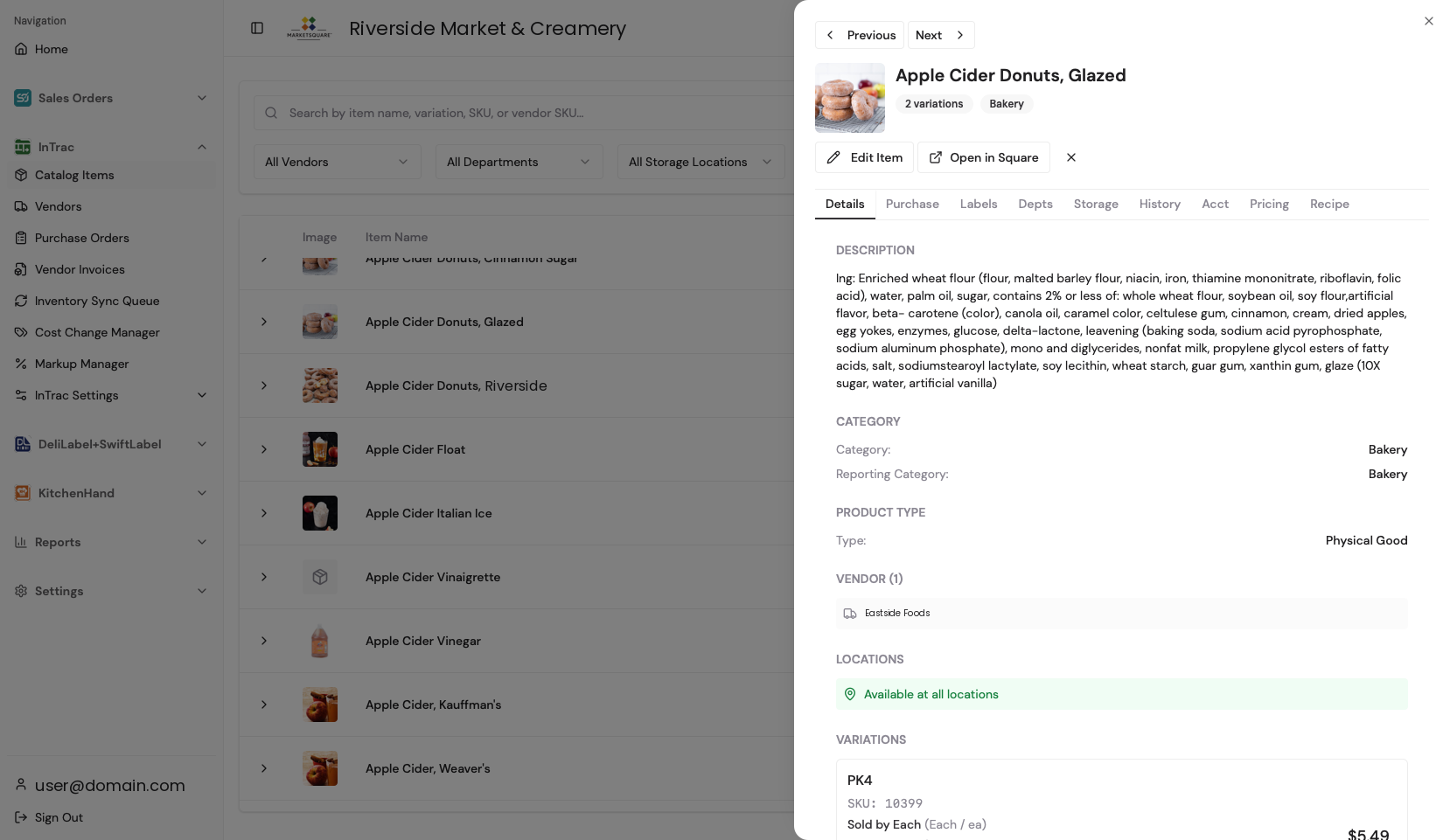
Open the item in Catalog Items On your computer
Open Catalog Items, search by name, SKU or vendor SKU, then click the item to open its detail drawer.
Open the Purchase Units tab On your computer
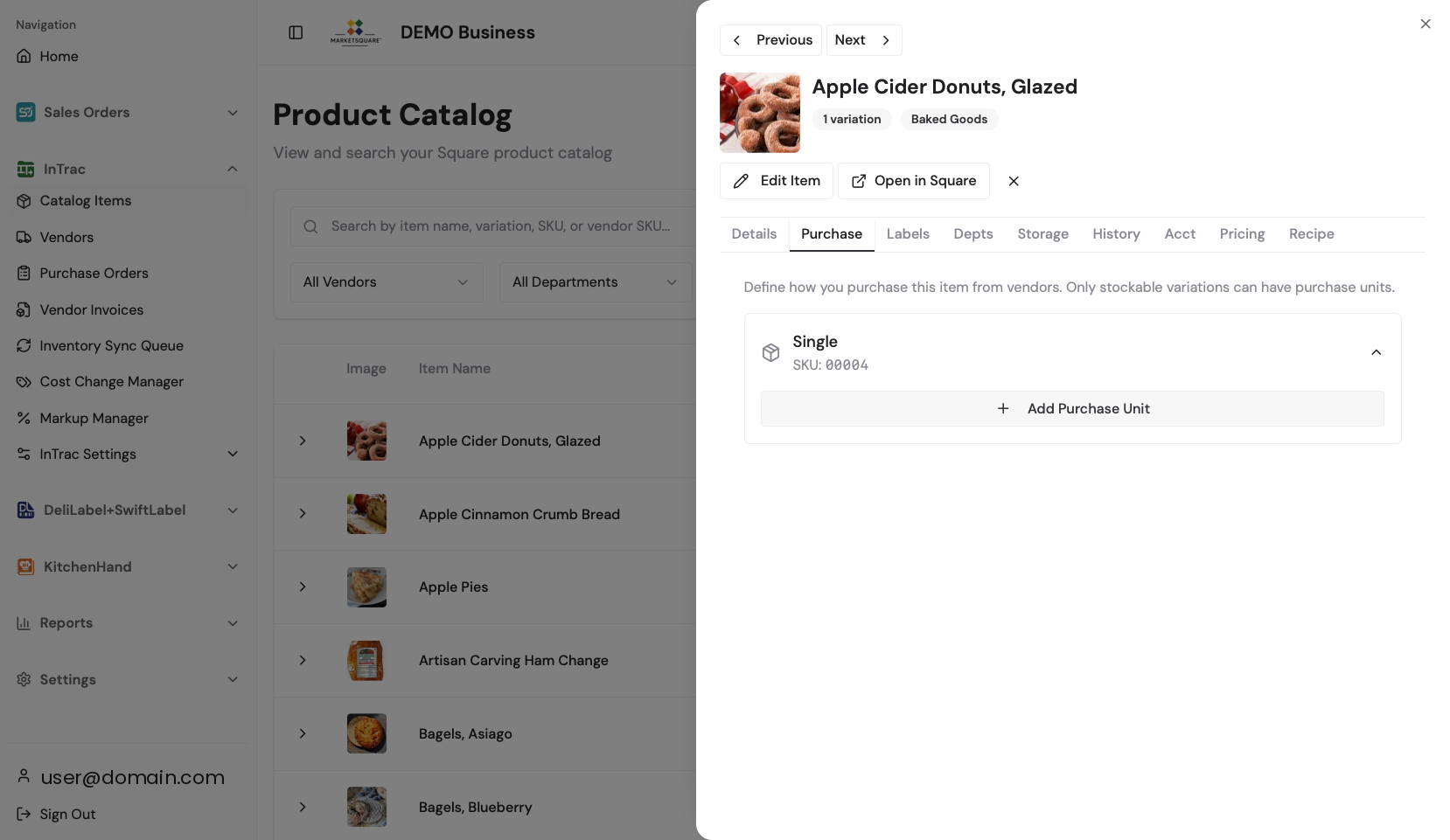
Select the Purchase tab. If the item has no units yet you will see just the variation and an Add Purchase Unit button. Note the reminder on screen: only stockable variations can have purchase units.
Create the Purchase Unit On your computer
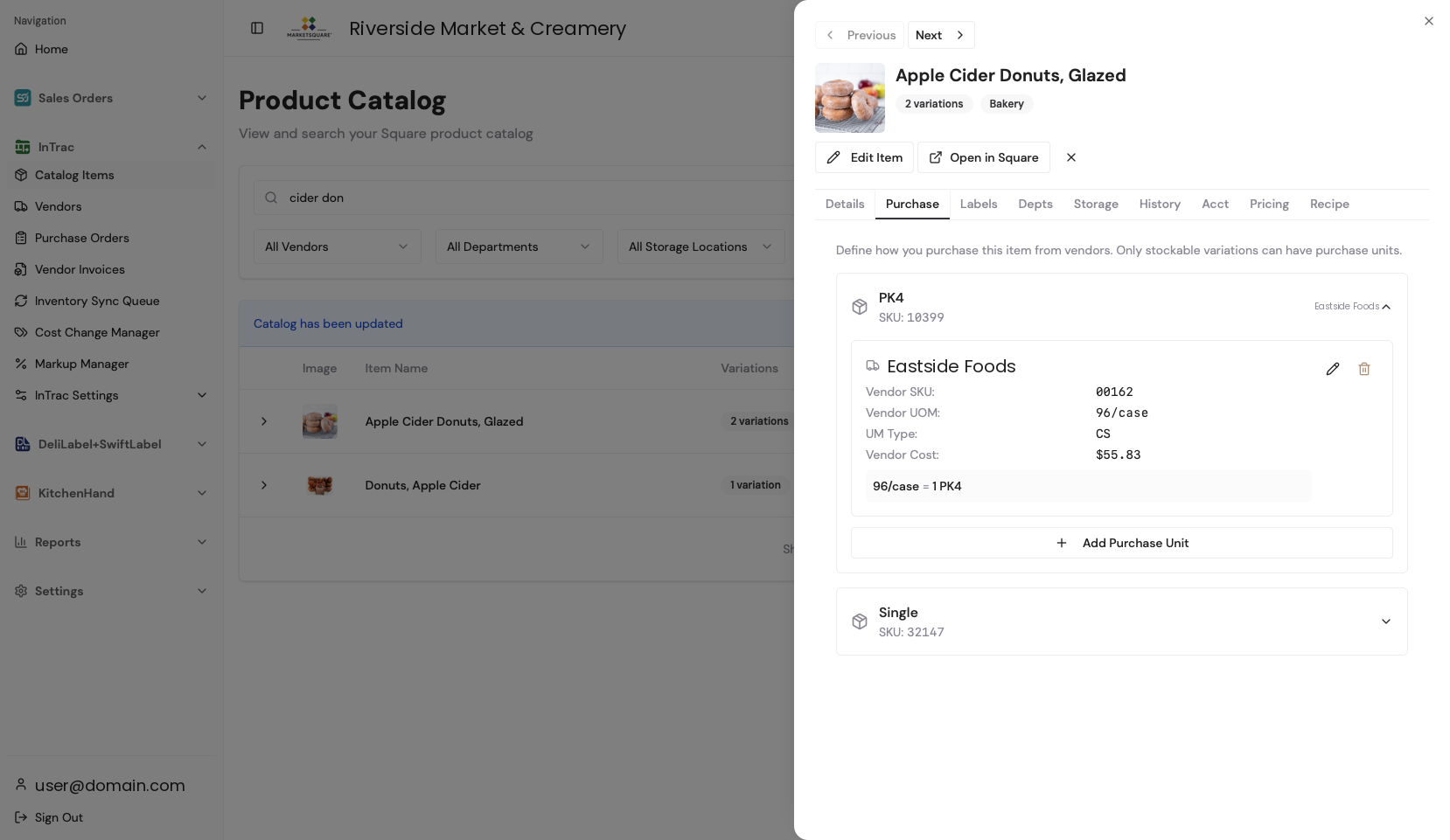
Add Purchase Unit and fill in the vendor, the vendor SKU, the vendor's unit of measure (e.g., 96/case), the UM type, and the vendor cost. Save.
InTrac writes the conversion in plain English underneath —
96/case = 1 PK4. If that sentence reads correctly, the unit is set up correctly.
Repeat per vendor or pack size On your computer
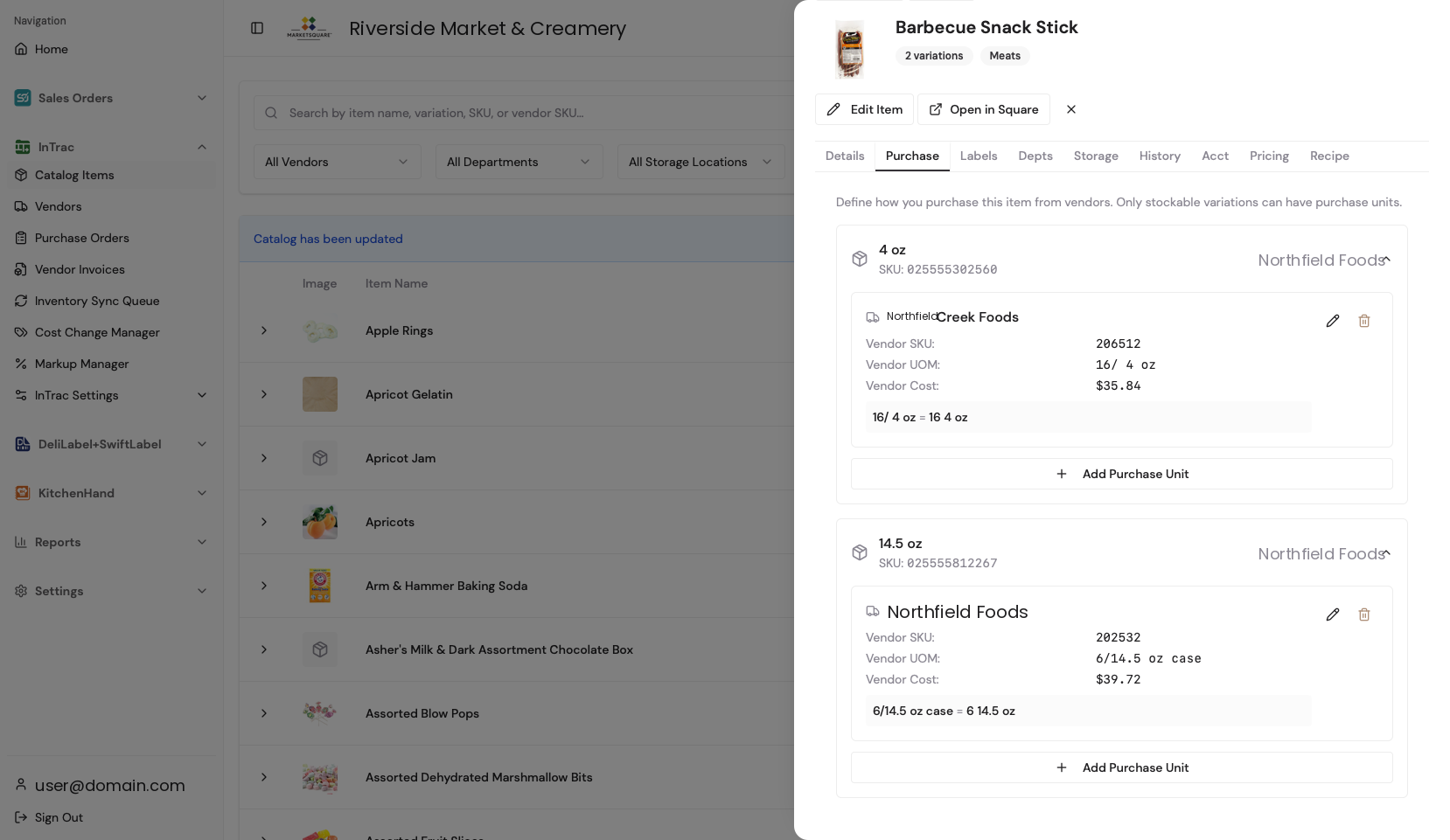
An item can hold multiple purchase units — one per vendor, or one per pack size from the same vendor. InTrac shows them all when you build a purchase order, so you can compare before you commit.
Common questions
We have Each and Case as two variations in Square — how is that handled?
Track inventory on the unit you count on the shelf, and set the case up as a purchase unit with a conversion. InTrac does the case-to-each math at both ordering and receiving.
Can purchase units be created in bulk?
Reconciling a vendor invoice is the fastest way to build them out — you confirm vendor SKUs, pack sizes and costs line by line as real invoices are matched. A dedicated bulk editor is on the roadmap.
Where does cost come from?
Last Cost fills in from the most recent purchase order for that unit. You can override it on the Inventory tab at any time.