
- Ensure you have the most updated version of the DeliLabel app from the App Store.
- Open the DeliLabel app.
- Tap the Menu button at the bottom left of DeliLabel and go to Settings.
- Tap on Scales.
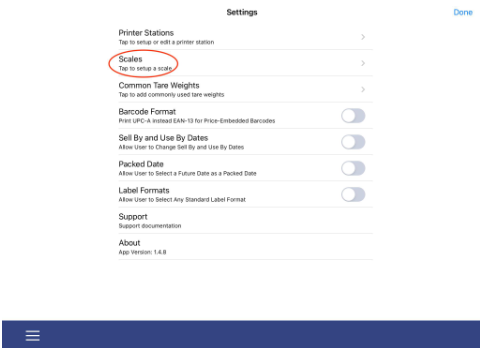
- Toggle the Use A Bluetooth Scale button to on.

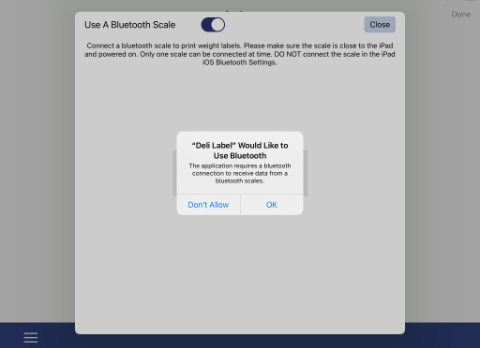
- If this is your initial setup, you may see a popup like the one below. Tap OK to allow DeliLabel to use Bluetooth. If you tap Don’t Allow, you will need to go into your iPad’s settings and give DeliLabel Bluetooth permissions before continuing.
- Let the app search for any local bluetooth scales and when you see an option, tap “Connect”. (The name is on the side of the scale ex. Scale-4502-a12b7243).
- Test the connection by going to select an item and testing the weight on the scale and seeing if it populates when you press “Show Total Price”