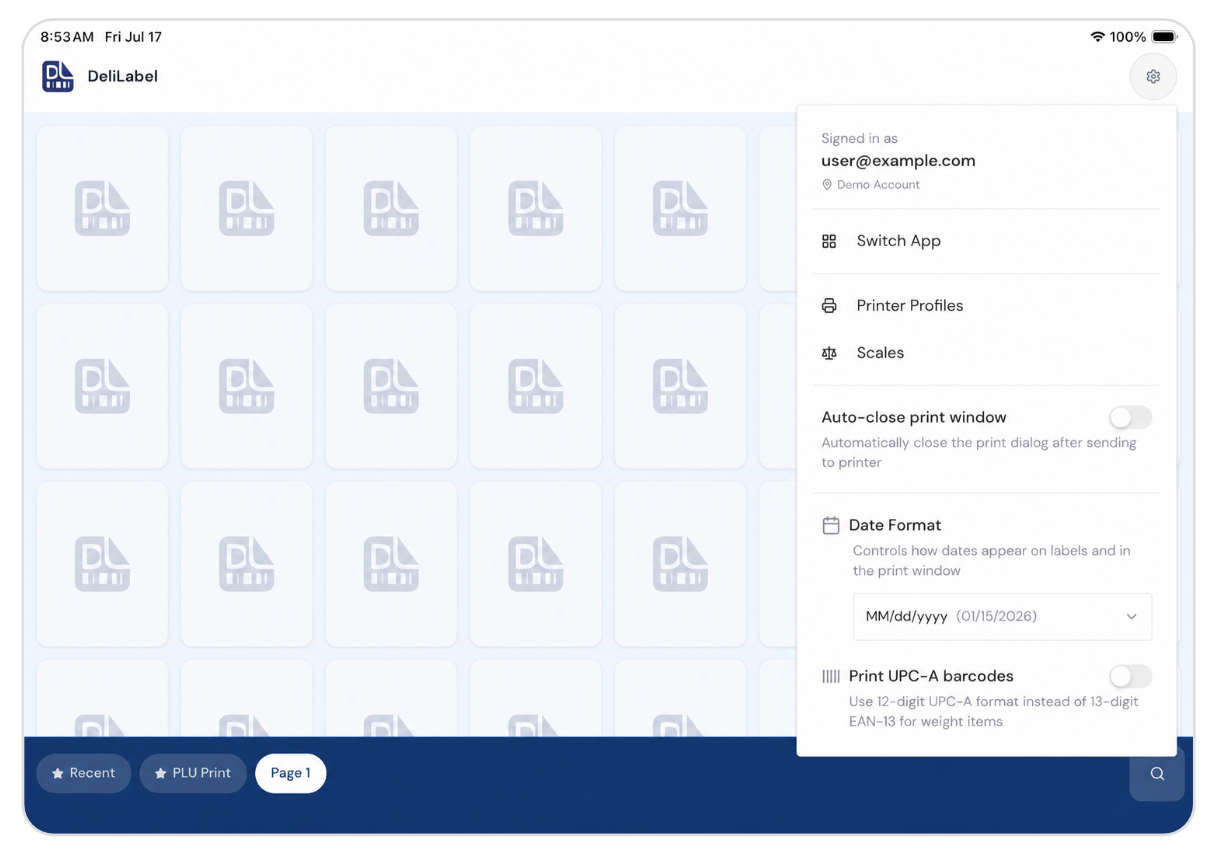
DeliLabel connects to a Bluetooth or Wi-Fi label printer and, optionally, a Bluetooth scale, allowing staff to weigh an item, pull up its product record, and print a compliant weight-and-price label in a few taps. The app organizes products into a searchable grid of tiles grouped into pages, with a dedicated PLU Print view for quick lookups by PLU or SKU.
This guide covers how to find and install the app, sign in and choose an app, and connect a printer and scale.
Finding & Opening the App
DeliLabel is listed in the App Store under the developer name MarketSquare Tech, published by Plum Creek Farm LLC, in the Business category.
1. Open the App Store and search for MarketSquare Tech or DeliLabel.
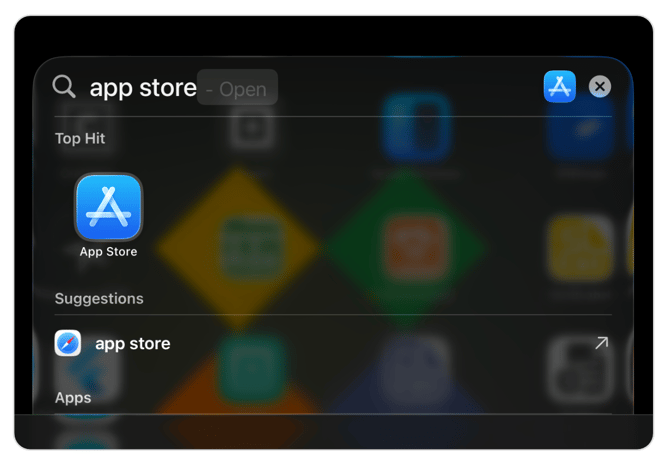
2. Select the app from the search results.
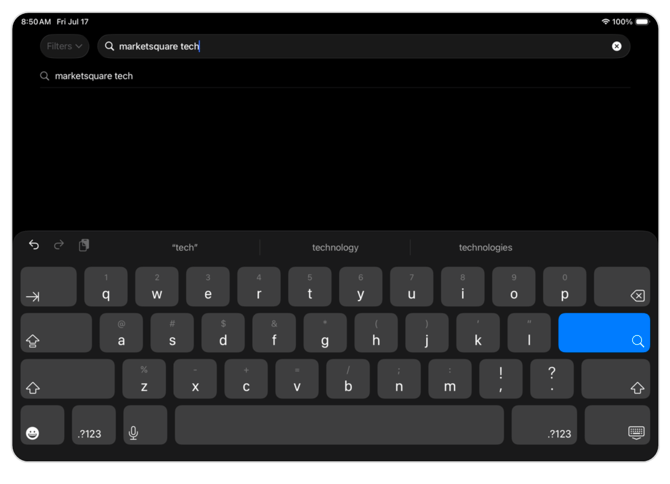
3. Tap Get to install it, or tap Open if it is already installed.
Signing In & Choosing a Module
DeliLabel is one of several MarketSquare mobile apps that share a single login. The first time you open the app, or after signing out, you will arrive at the MarketSquare Mobile Apps login screen.
1. Enter your Email and Password, then tap Login.
TIP: Use Forgot Password? if you need to reset your credentials.
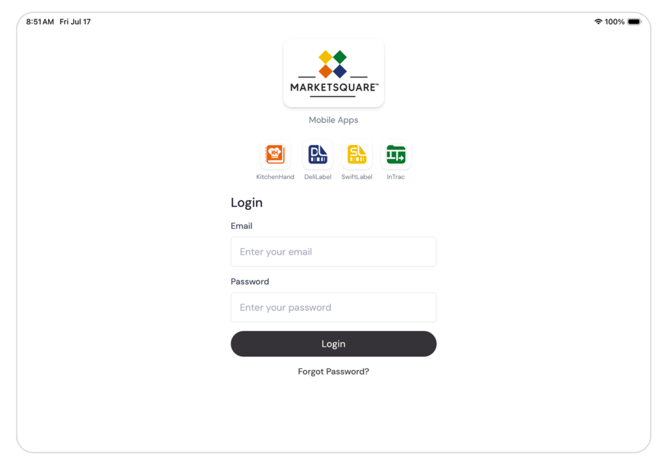
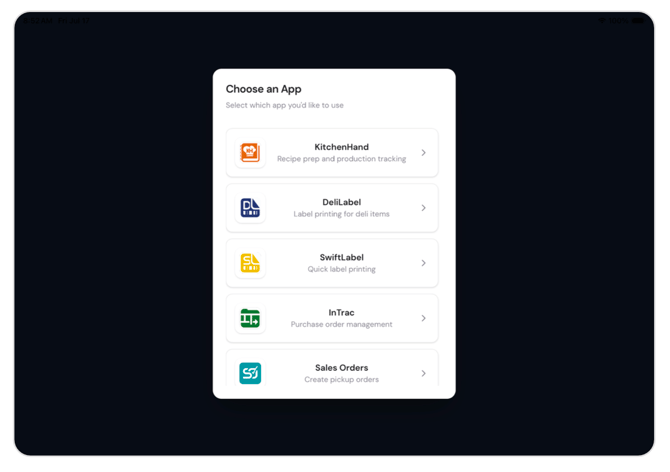
2. Once you gain access, MarketSquare displays the apps available to your account as icons:
- KitchenHand: Recipe preparation and production tracking
- DeliLabel: Label printing for deli items
- SwiftLabel: Quick label printing
- InTrac: Purchase-order management
- Sales Orders: Create pickup orders
Tapping one of these icons opens that app directly.
Initial Setup
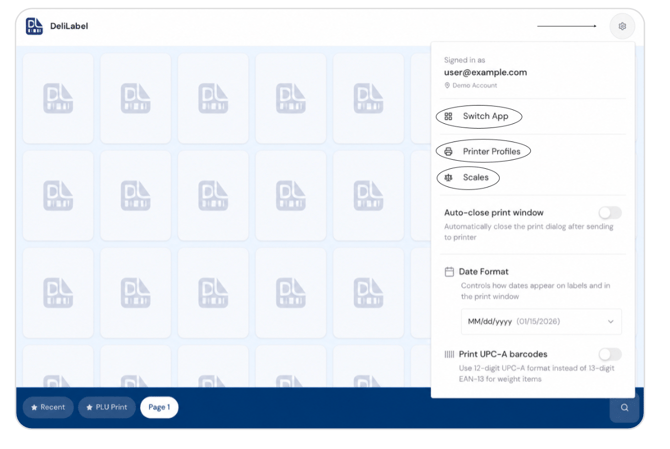
Before printing your first label, you must connect a printer and, if your workflow includes weighed items, a scale. Both devices are configured through the settings menu. Tap the gear icon in the upper-right corner of the main screen. The settings panel also displays the account currently signed in and provides a Switch App shortcut if your account has access to more than one MarketSquare Tech app.
Printer Profile
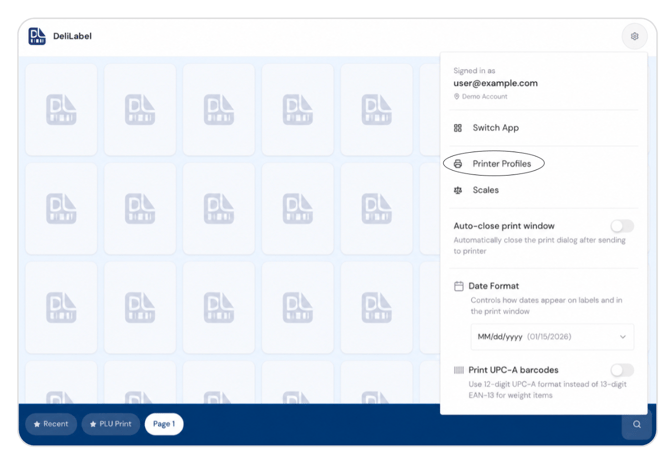
1. Open the settings menu and tap Printer Profiles.
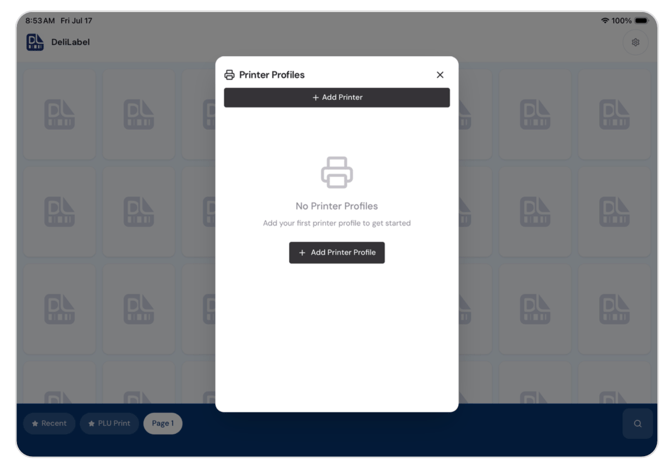
2. On a fresh installation, the printer-profile list will be empty. Tap Add Printer or Add Printer
Profile.
3. Select the printer model that matches your hardware.
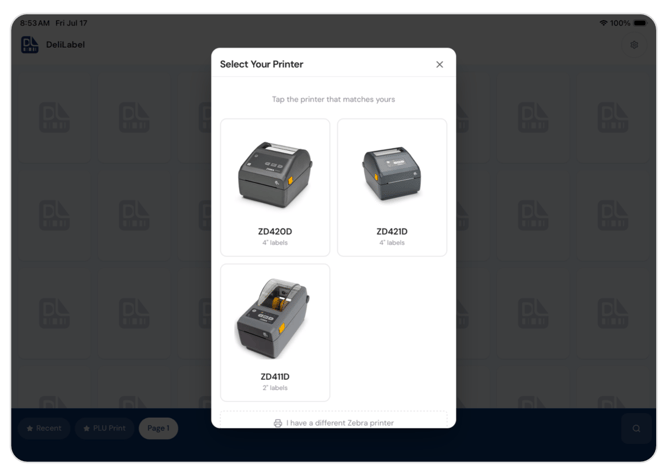
- If your printer is not listed, tap I have a different Zebra printer.
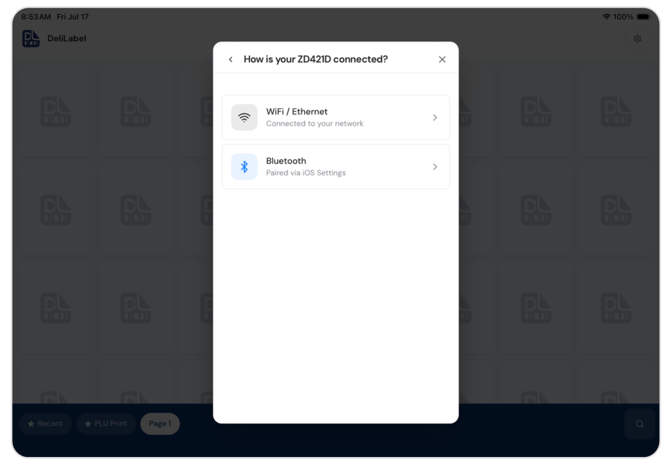
4. Select the printer's connection method.
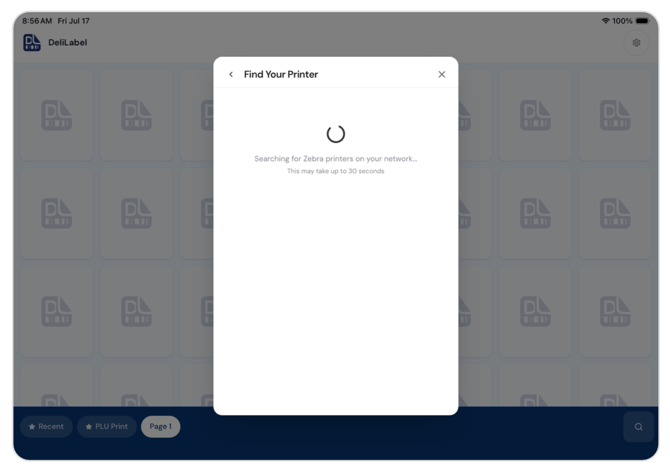
 5. For a network printer, DeliLabel searches for Zebra printers on your Wi-Fi network for up to 30 seconds.
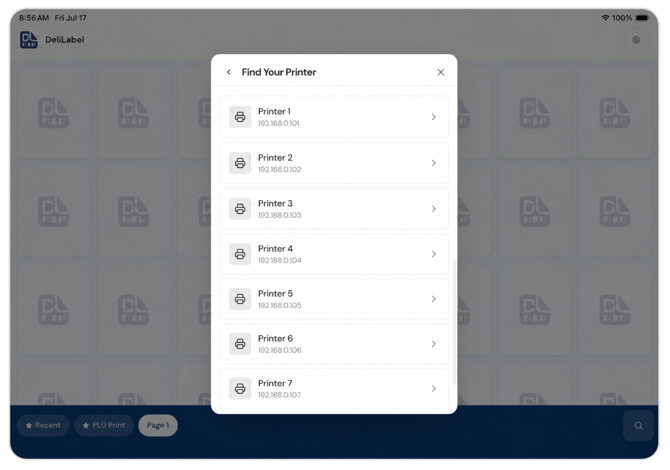
6. Tap the printer you want to use.
 7. Once connected, the Configure Printer screen appears. It is prefilled with the printer's:
- IP address
- Print resolution, or DPI
- MAC address
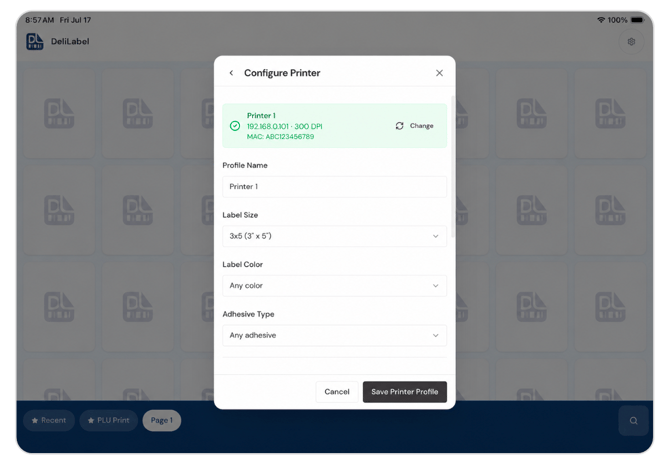 8. Confirm or edit the following information:
- Profile Name
- Label Size, such as 3" × 5"
- Label Color
- Adhesive Type
9. Tap Save Printer Profile.
You may add more than one printer profile. This is useful when different stations print different label sizes, such as bulk labels, cake labels, or shipping labels.
Scale
1. Open the settings menu and tap Scales.
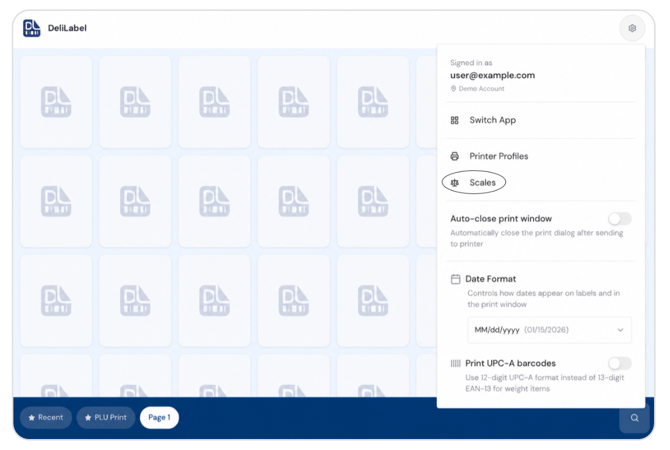 2. The Scale Settings screen displays the current connection status. It will show Not Connected
until a scale has been paired.
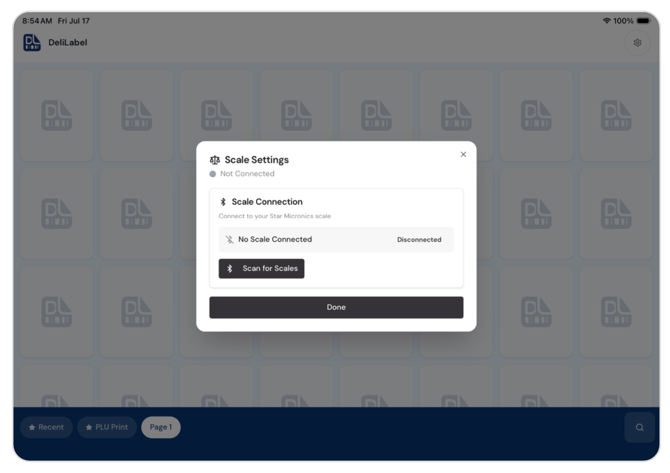 3. Tap Scan for Scales. DeliLabel searches for nearby Bluetooth scales and lists any detected devices under Found Scales. Scales are identified by name, as shown.
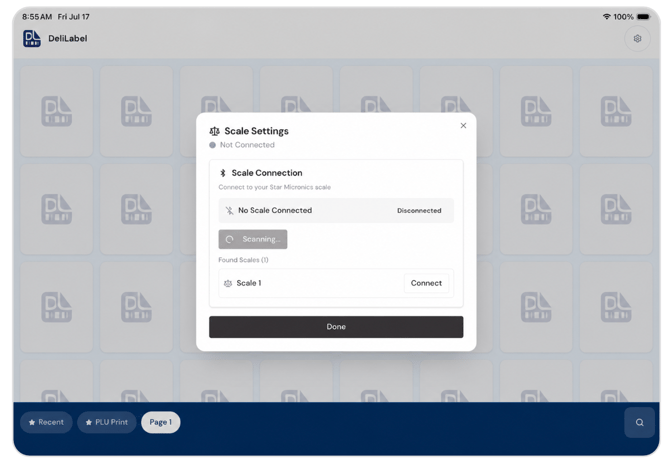
4. Tap Connect next to the scale you want to use.
5. Once connected, the panel displays:
- Connected: [scale name]
- A live weight reading
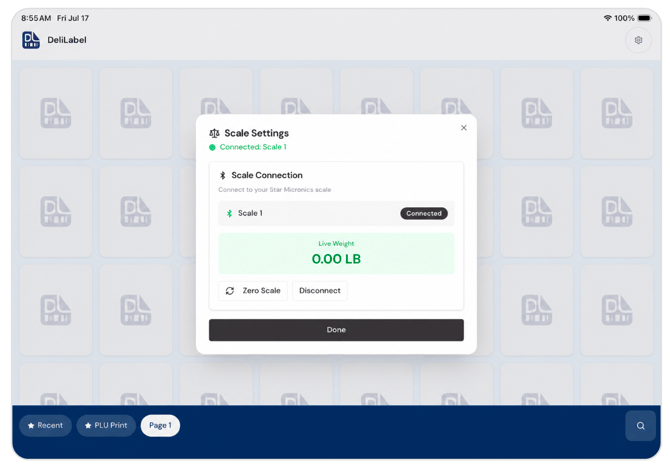 6. Use the available controls shown above as needed:
- Zero Scale: Tares or zeroes the scale.
- Disconnect: Unpairs the scale.
- Done: Closes the Scale Settings screen.
Other Settings
The settings menu includes several app-wide preferences.
Auto-Close Print Window: Automatically closes the print dialog after a label is sent to the printer.
Date Format: Controls how dates are displayed on labels and in the print window. The default format is: MM/dd/yyyy
Print UPC-A Barcodes: Enable this setting to print 12-digit UPC-A barcodes instead of the default 13-digit EAN-13 format for weighed items.