
Overview
The item print display is what comes up when you click on an item in DeliLabel, either through the dashboards or through the search. You select the item and if you are weighing it, you place the item on the scale once the print display is open. This is where you can make any changes you may need before you print the item.
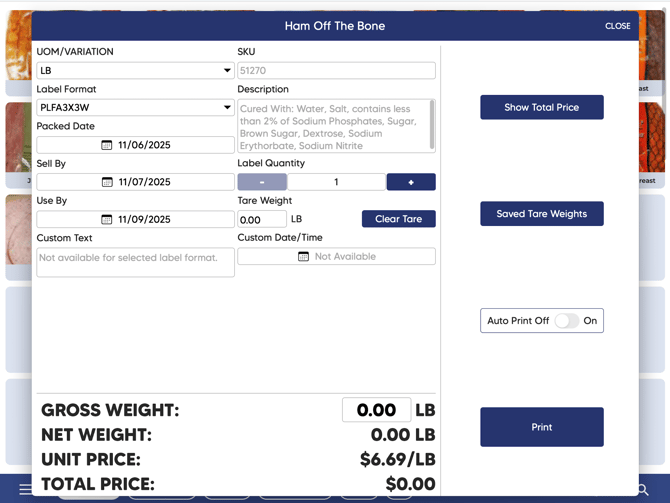
UOM/Variation
This is where you can change the variation for an item that may have multiple. Instead of having a separate item in Square for each variation, you're able to simply change it here (i.e. 4pk donuts vs 12pk donuts)
SKU
This is the field where we populate the item SKU from Square. This field is only editable in Square
Label Format
Here is where you will see the default label format you assigned to the item in the web app. A default label parameter cannot be assigned in DeliLabel, only the web app. If it does not have one assigned, it will be blank. If you only see a single label option, you may need to toggle the "Label Formats" option in your settings.
Description
This is where we pull in your item description from Square. Most users will use this for ingredient lists. This field is only editable in Square.
Packed Date/Sell By/Use By
These fields are set to default parameters in the web app, but they can be edited in the DeliLabel app. The "Packed Date" can be turned off, set as a standard date, or set as a coded date. You can changed how the date is coded in the DeliLabel settings under "Coded Packed Date Format". The format for how the date appears on the label can be changed in the settings as well, under the "Date Formats" option.
Label Quantity
This is where you can increase the labels printed in a single print session for non-weighted labels.
Tare Weight/Clear Tare/Saved Tare Weights
These fields are where you can edit the tare weight manually, clear it off, or add a tare weight that you have saved in your settings. To add a new saved tare weight, go to your settings and press "Common Tare Weights" and then "Add Tare Weight". Here you can name and add any new tare weights for commonly used containers. Weights will be added by the weight format on the scale and item.
Show Total Price
Pressing this while an item is on the scale will let the user preview the weight and price before printing.
Custom Text/Custom Date/Time
If the user has a custom label that has these fields added, they may be edited here. You can save the information entered here by going to the settings and toggling the "Save Custom Text and Date" option to on.
Auto Print
This is where the user can toggle the auto print function on for any weighted items. When an item is added to the scale and an accurate weight is registered, it will automatically print off a label without the user having to press the "Print" button. This is useful when packaging a larger quantity of the same item (i.e. the user wants to print labels for approximately 1 lb of turkey breast in each in 20 baggies).
This is where the user prints the label. If it is a non-weighted item, it will print without any input from a scale. If it is a weighted item, it needs to be on the scale. If the item requires a tare weight (default) then one will need to be added before printing.
Gross Weight/Net Weight
The gross weight is the weight of the item before the tare weight has been subtracted from it. This field is editable. The net weight is the true weight of the item after the tare weight has been taken off.
Unit Price/Total Price
The unit price is the standard price of the item per variation. The total price is for weighted items that shows the total value of the product based off of the net weight.