
 KitchenHand
Applies to: the current MarketSquare platform — mymst.app. Not applicable to the legacy V2 platform (beta.intrac.app).
 On your computer the web back office ·
 In the app phone, tablet or scale device
👉 Tap this press it in the app · Exact label look for this wording on screen
What this does
The  KitchenHand Worklist is your production schedule: what to make, how much, and by when. It replaces the handwritten prep list, and because every task is tied to a recipe, finishing one updates inventory automatically.
Where this happens: managers schedule on a computer; staff work the list in the app.
- The recipe exists (see Putting a Recipe Together).
- Employees are set up if you want to assign tasks to specific people.
Create a task On your computer
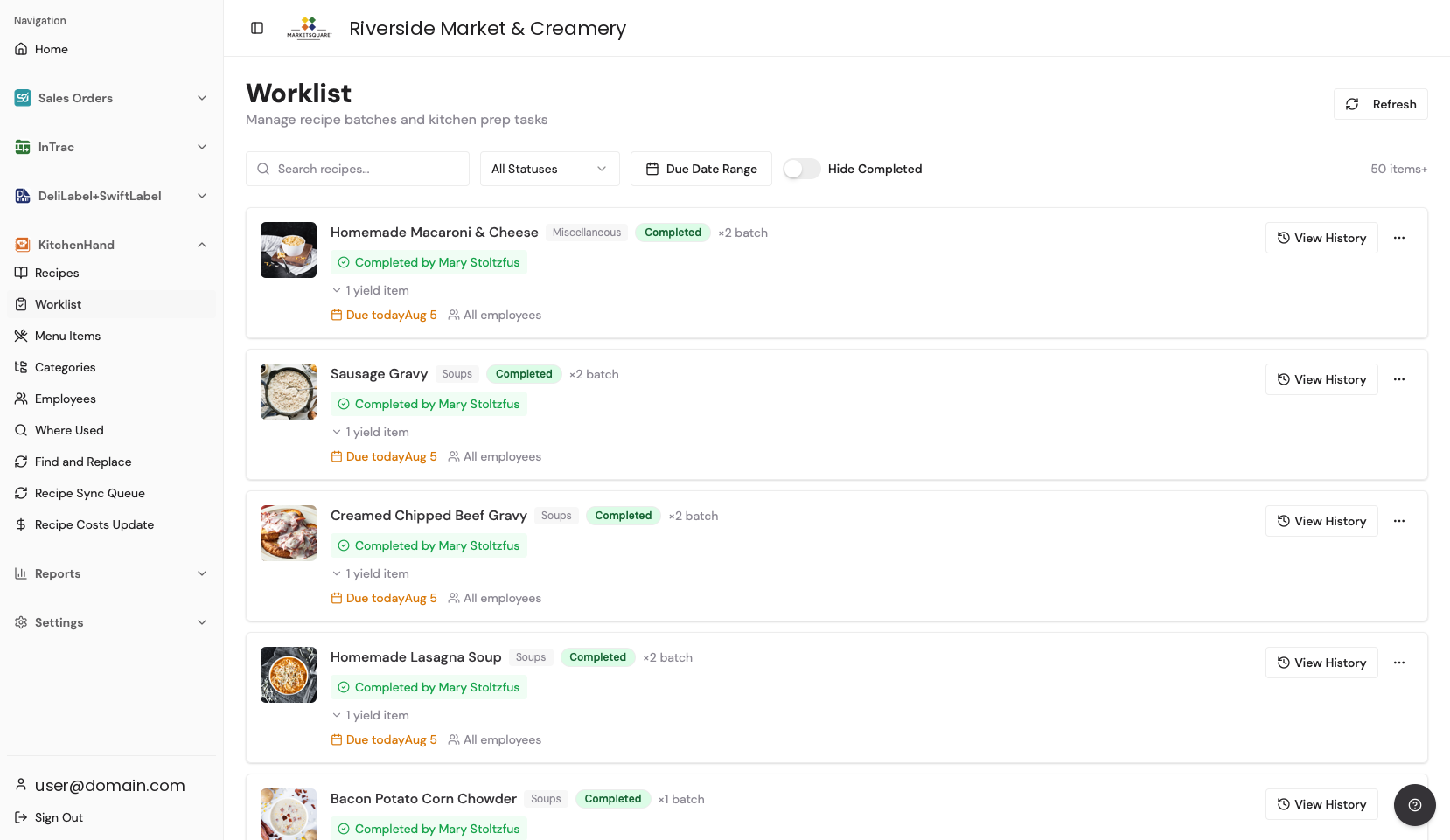
Open Worklist and add a new entry, or start from the recipe itself with Add to Worklist. The list shows everything outstanding, grouped by category and sorted so today's work is in front of you.
Set the batch size and due date On your computer
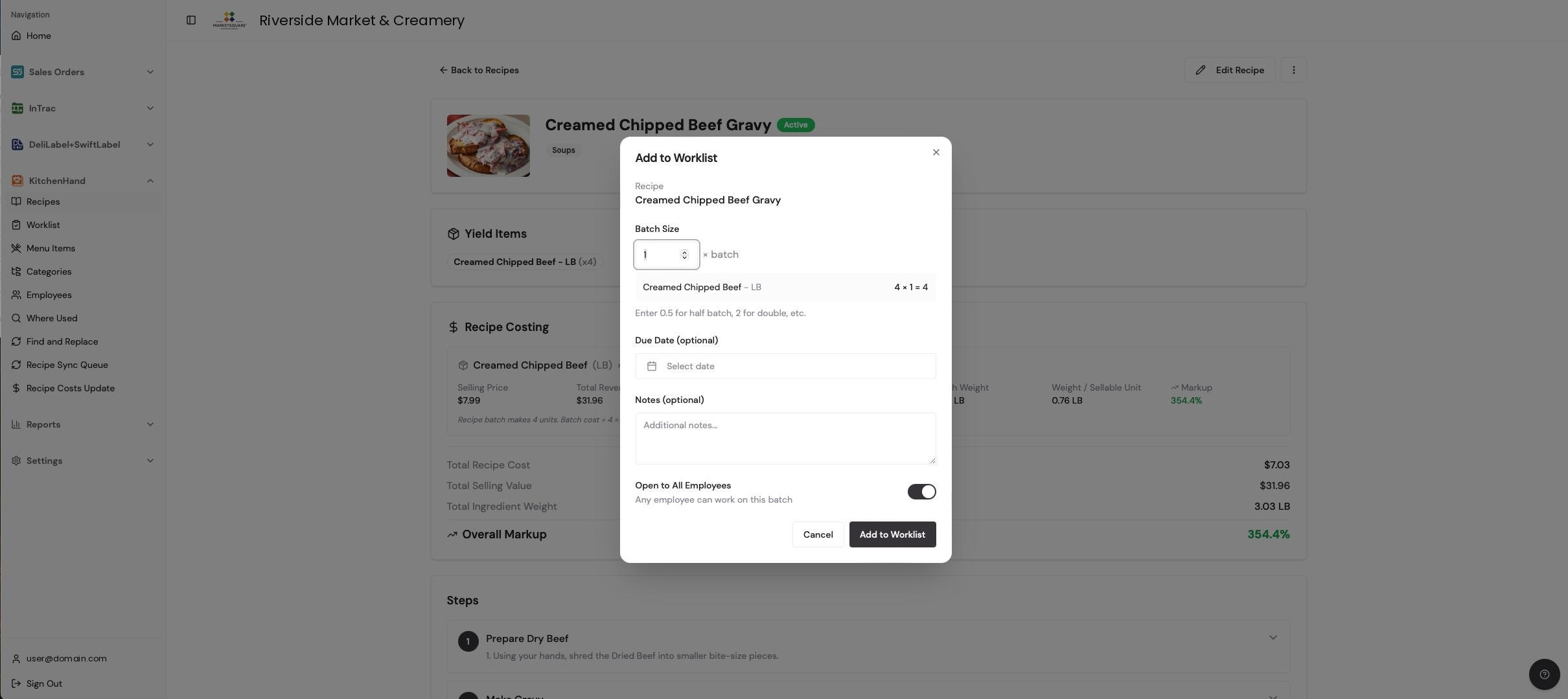
Set Batch Size — it accepts fractions, so 0.5 is a half batch and 2 is a double. Add a Due Date and notes if useful (both optional). The costing summary beside the form shows what the batch will cost and what it will be worth before you commit to it.
Assign it — or open it to everyone On your computer
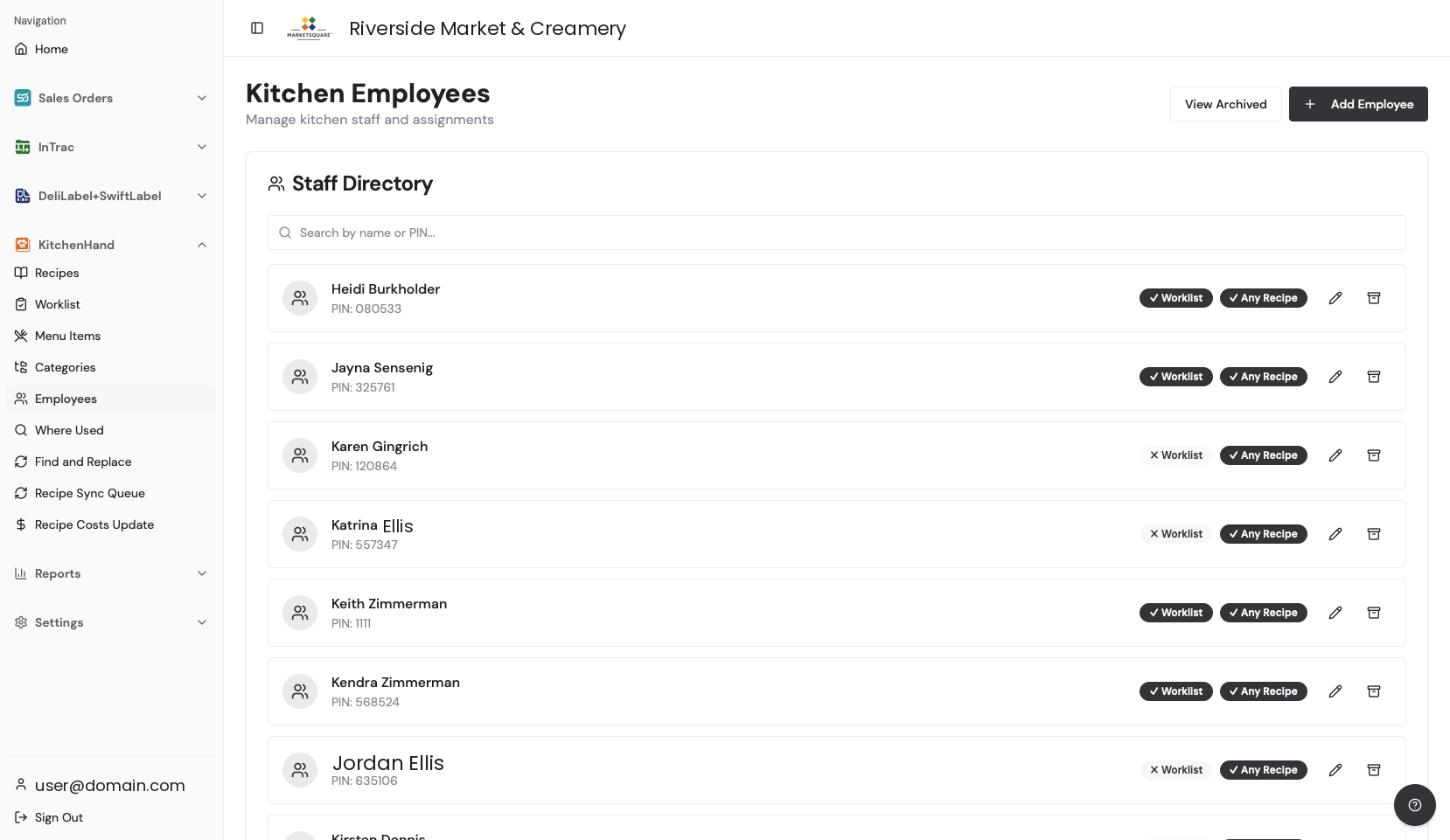
Assign the task to a named employee, or switch on Open to All Employees so whoever is free picks it up. Staff only ever see what their permissions allow.
Staff complete it, and inventory follows In the app
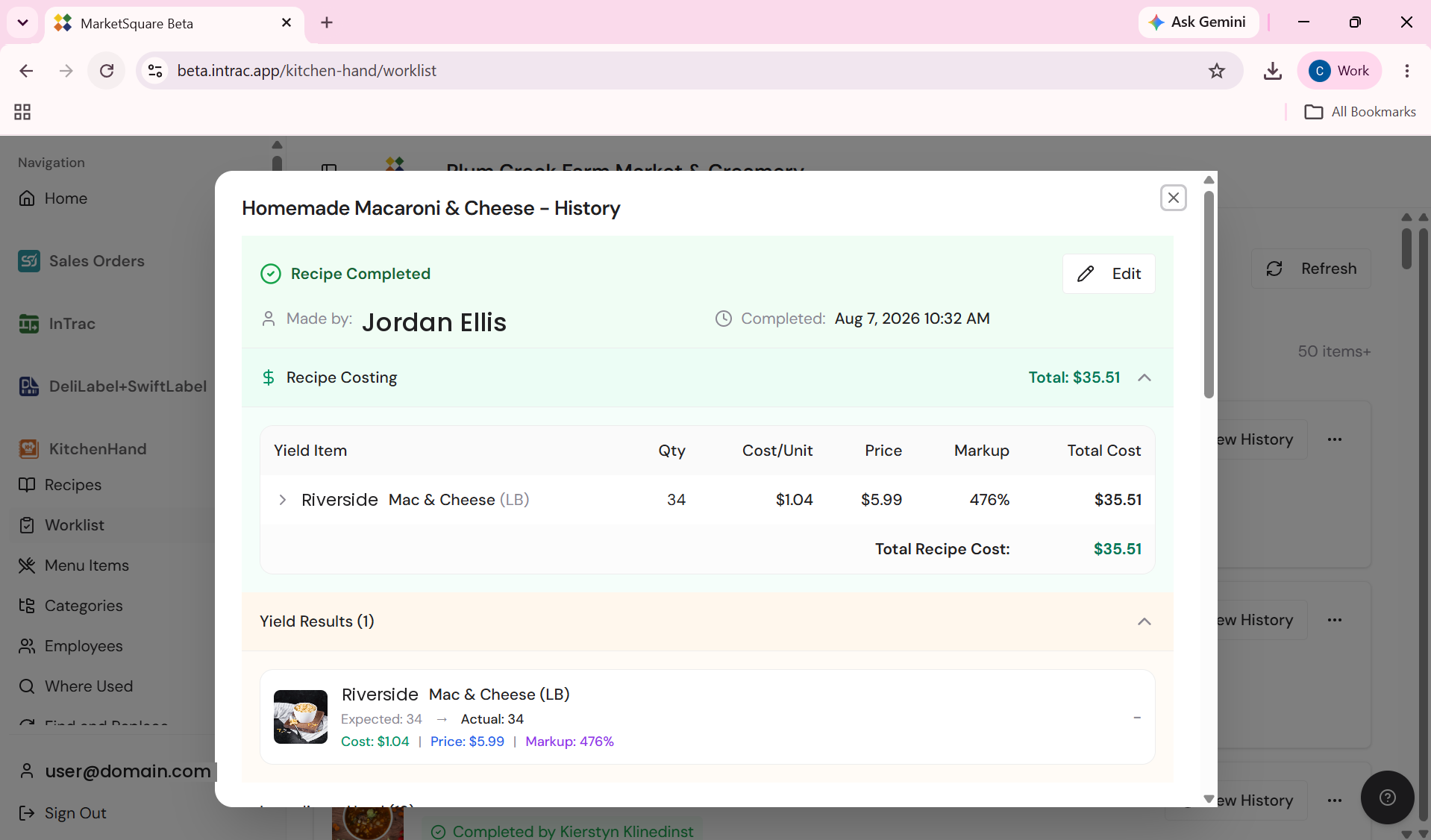
The task shows as Pending on the kitchen device. Staff work the recipe and finish the batch, and the history record then shows who made it, when, and the expected versus actual yield — plus cost per unit, price and markup for that run. Ingredients deplete and the yield lands in Square without anyone re-keying anything.
 Sales Orders
Prep view, which aggregates everything customers have ordered across upcoming pickup dates. That tells you exactly which batches to schedule.
Sales Orders
Prep view, which aggregates everything customers have ordered across upcoming pickup dates. That tells you exactly which batches to schedule.
Common questions
Can I schedule recurring production, such as soup every Tuesday?
Create the tasks ahead for the dates you need. Because tasks are dated, your history doubles as a record of what was actually produced each day.
What if we make more or less than the scheduled batch?
Staff adjust the produced quantity when they finish, so inventory reflects what was really made.
Who can see the worklist?
Anyone with KitchenHand access on their device, filtered by their permissions. Assigning tasks keeps individual accountability clear.