
Overview
This guide will cover features of Square that you should be familiar with in order to use DeliLabel. This includes setting up items to be sold per item or by weight and managing multiple store locations (if necessary).
Units
If you plan to sell items by weight, you must make sure that you have properly
configured your units.
- Log into Square and select Items on the left hand side,
then select Units.- If you have no units set up, click Add Units.
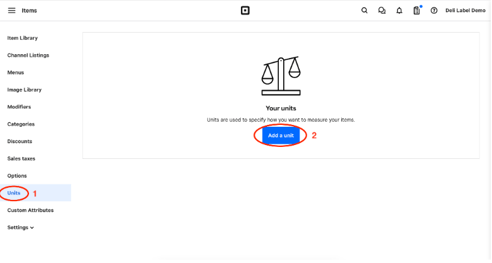
- If you have no units set up, click Add Units.
-
Select the unit that you will be measuring with and set the precision to 2 decimal
places (.00).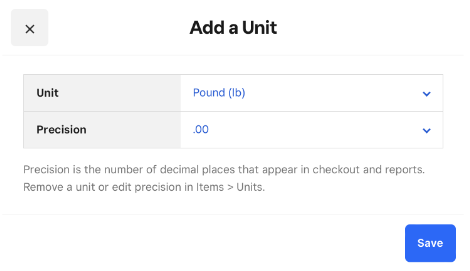
- If you’ve been using Square for a while, it is possible that you will already have
some custom units created, as shown below.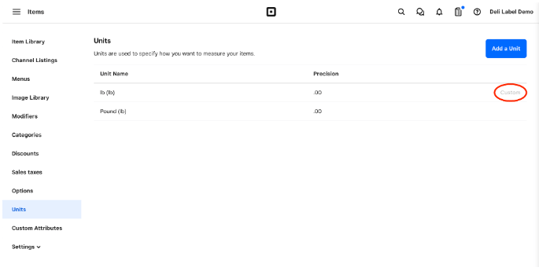
- Both of these measure in pounds, but note that the one on top is custom. You
can tell which units are custom by looking on the far right side of the window.
These custom units will not work with Delilabel. When you select a unit for your
item, you must use the standard units that Square provides.
- Both of these measure in pounds, but note that the one on top is custom. You
Item Setup
- To access your Item Library, log into Square and select Items on the left hand
side.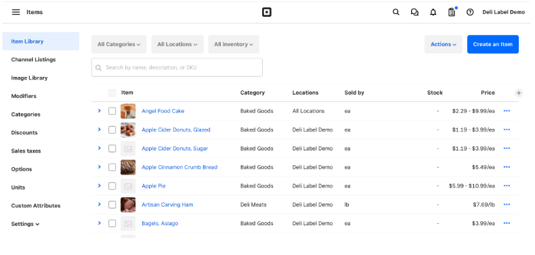
- In the Sold by column above, items are sold either by the item (ea) or by weight
(lb). Clicking on the name of an item will open the menu shown below.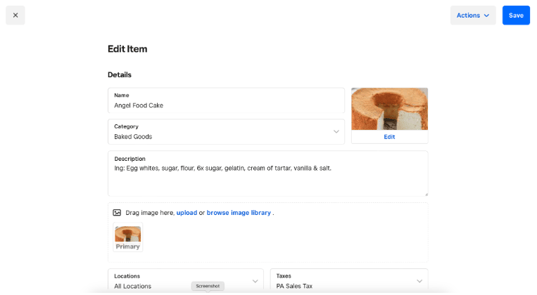
- DeliLabel will read the Name, Category, Description, Locations, and Taxes fields and is able to print this information on labels. The Primary image will also be used to fill in the item tile on the DeliLabel app if one is uploaded.
- To view pricing information, scroll down to the variations section. For items sold
per item, variations should be different sizes or counts of the same item. We
recommend keeping SKUs between 5 and 7 digits, especially if using smaller labels.- Longer SKUs will generate longer barcodes that may not fit on some
labels. We also recommend keeping the variation name concise so that it will fit
on a label. An example is shown below.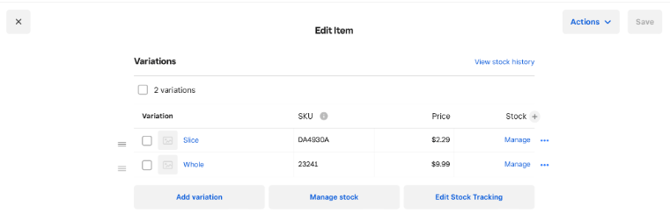
- Longer SKUs will generate longer barcodes that may not fit on some
- For items sold by weight, variations can be used for different units of measure,
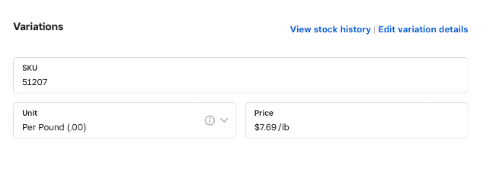
although typically only one is needed.- IMPORTANT: SKUs for weight items must be 5 digits long and can only be numbers. Square will not be able to read barcodes for weight items if the SKU is not in this format. We recommend using the abbreviation for the selected unit of measure as the name of the variation for weight labels. Also, as discussed above, the unit for weight items must be one of the standard units that Square offers. It cannot be a custom unit. The precision for the unit should also be set to 2 decimal places (.00). An example of a variation for a weight item is shown below.
- IMPORTANT: SKUs for weight items must be 5 digits long and can only be numbers. Square will not be able to read barcodes for weight items if the SKU is not in this format. We recommend using the abbreviation for the selected unit of measure as the name of the variation for weight labels. Also, as discussed above, the unit for weight items must be one of the standard units that Square offers. It cannot be a custom unit. The precision for the unit should also be set to 2 decimal places (.00). An example of a variation for a weight item is shown below.
Locations
If you have multiple locations, you may want to set some items to only be
available at one location.
- To change which location an item is available at, click the Item Name in the Square Item Library and change the Location.
- Each DeliLabel App User is associated with a location. When logged into the DeliLabel App, the App User will only be able to see and print labels for items that are available at their location.
- Each DeliLabel App User is associated with a location. When logged into the DeliLabel App, the App User will only be able to see and print labels for items that are available at their location.
- To create or edit Locations, click the Menu button in the upper left corner and then
scroll down and click Settings, then Account & Settings.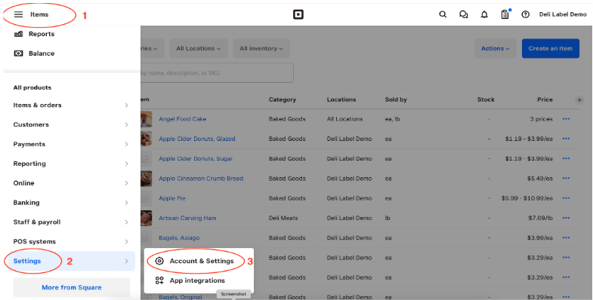
- On the next screen, click Business Information, then Locations.
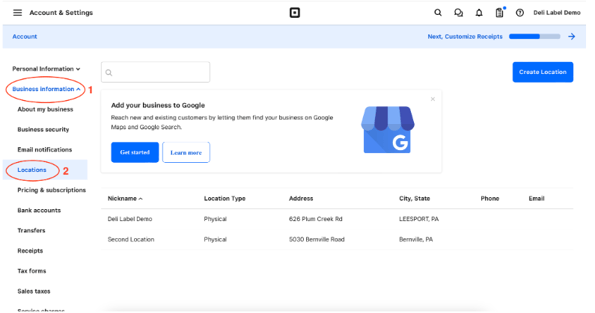
- Here you can view and edit the locations that DeliLabel will allow you to create
stores for. Once you’ve created a store in DeliLabel, you can assign App Users
to it.