Overview
The SwiftLabel Print Queue is where you will find the items ready to print that you have selected from your Item List. You can change the Quantity, Label Format, Packed Date, Sell By Date, and Use By Date from here. The app Settings button can also be found here - Settings Guide.
Editing Dates
- When an item is added to your Print Queue, you can change the Packed Date, Sell By Date, and Use By Date by tapping the Item Name, next to its Label Format in the Print Queue. This will give you a pop-up with the three options.
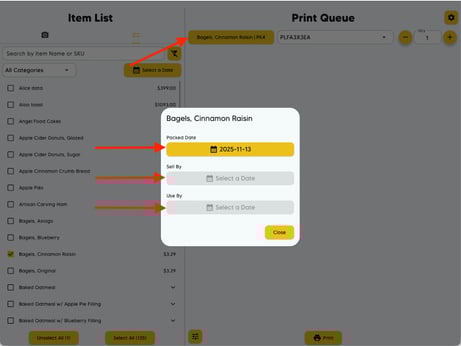
- Only the Packed Date will be editable by default. To enable editing of the Sell By and Use By Dates, you will need to go to Settings and toggle on Sell By and Use By Dates.
- To select a Packed Date in the future, you will also need to go to your Settings and toggle on Packed Date.
Label Format
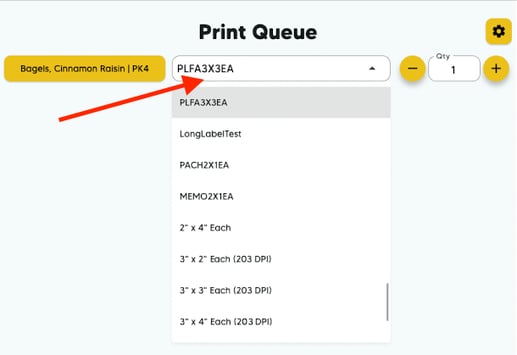
Here you will be able to change the Label Format that the item is printed on. There will be a Default Label Format selected based on your preferences set in the web app. Just tap on the Label Format and you will be presented with any options available for that item.
Label Quantity
- Here you will be able to select the amount of labels you want per item. You can use the Plus button to increase the amount or the Minus button to decrease them. Alternatively, you can press the number box and type in a new value.
- If you want to fully remove it from your Print Queue, you can't just lower it to zero, you need to unselect it from you Item List.
Queue Settings
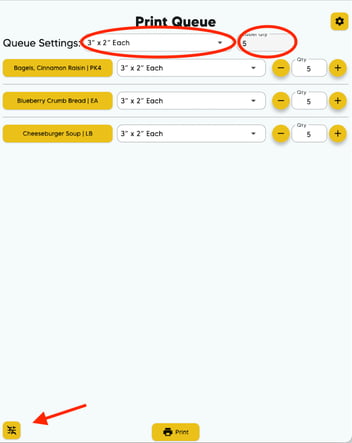
Here you can change both the Label Format and the Quantity for all of the items in your Print Queue. Just tap the Queue Settings button at the bottom left of the Print Queue. This will show those two settings above your first item in the Print Queue.
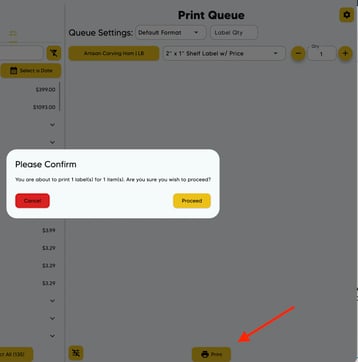
The Print button can be found at the bottom center of the Print Queue. Once your Print Queue has all of the items and necessary changes you need, simply press this and you will be prompted with a confirmation pop-up. You can press Cancel to make more changes or press Proceed to send the print job to the connected printers.