
 Sales Orders
Applies to: the current MarketSquare platform — mymst.app. Not applicable to the legacy V2 platform (beta.intrac.app).
 On your computer the web back office ·
 In the app phone, tablet or scale device
👉 Tap this press it in the app · Exact label look for this wording on screen
What this does
 Sales Orders lets your staff take custom and future orders — phone-ins, custom cakes, catering, holiday trays — as unpaid orders that flow through Square. The customer pays in Square at pickup or by invoice, and your kitchen sees everything to prepare in one aggregated view.
Where this happens: order taking is app work at the counter; payment happens at your Square point of sale.
Start the order and choose items In the app
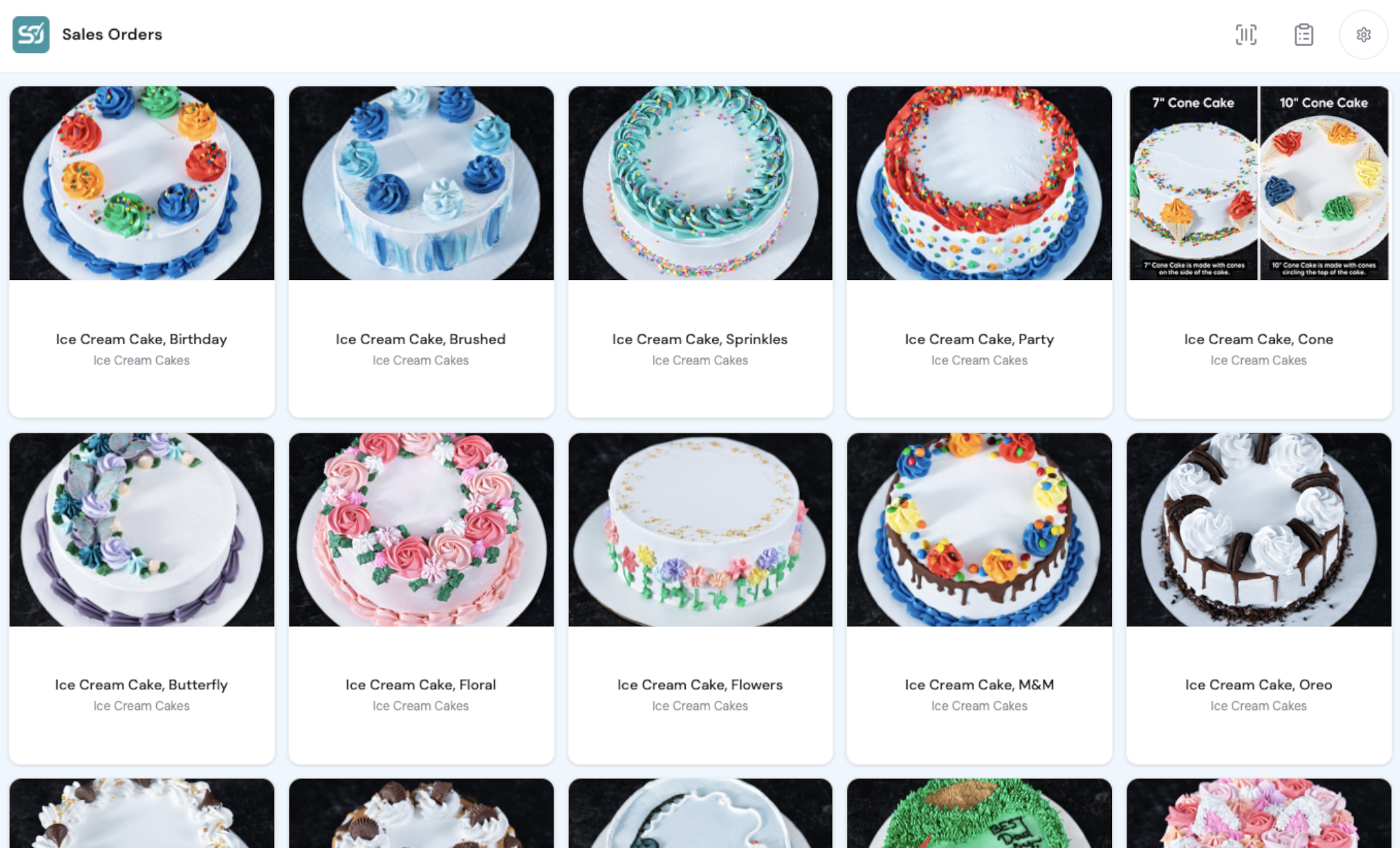
Browse or search the catalog and 👉 tap an item. Items, prices and photos come straight from your Square catalog.
Choose variations and options In the app
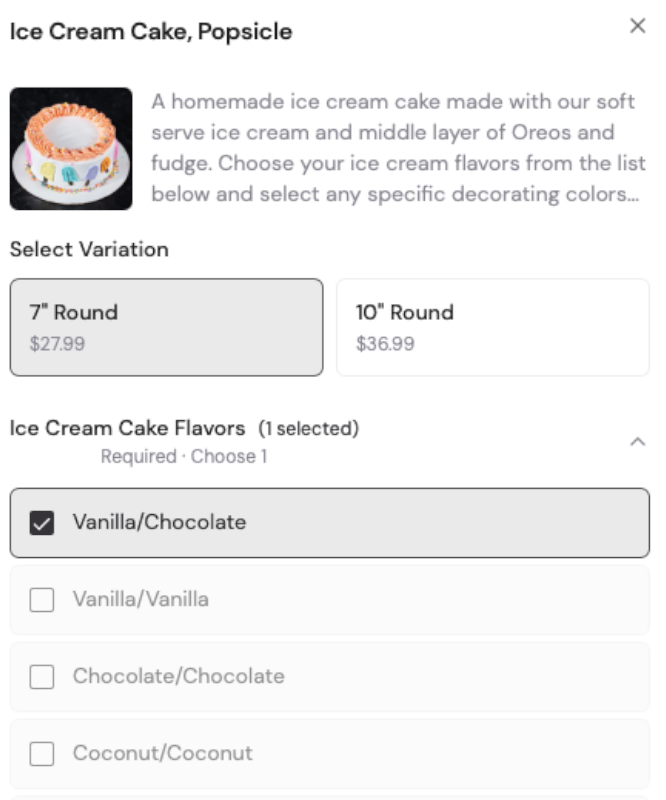
Select the variation and any required options — sizes, flavours, colours, inscriptions. Required choices are enforced, so orders arrive at the kitchen complete rather than needing a phone call.
Add the customer and pickup details In the app
Open the order details and 👉 Link Square Customer to pull in an existing customer, or type a new name, phone and email. Set the Pickup Date and Pickup Time, record Order Taken By, and add Order Notes for allergies or special instructions. Then 👉 Place Order.
The order is live — and unpaid — in Square On your computer In the app
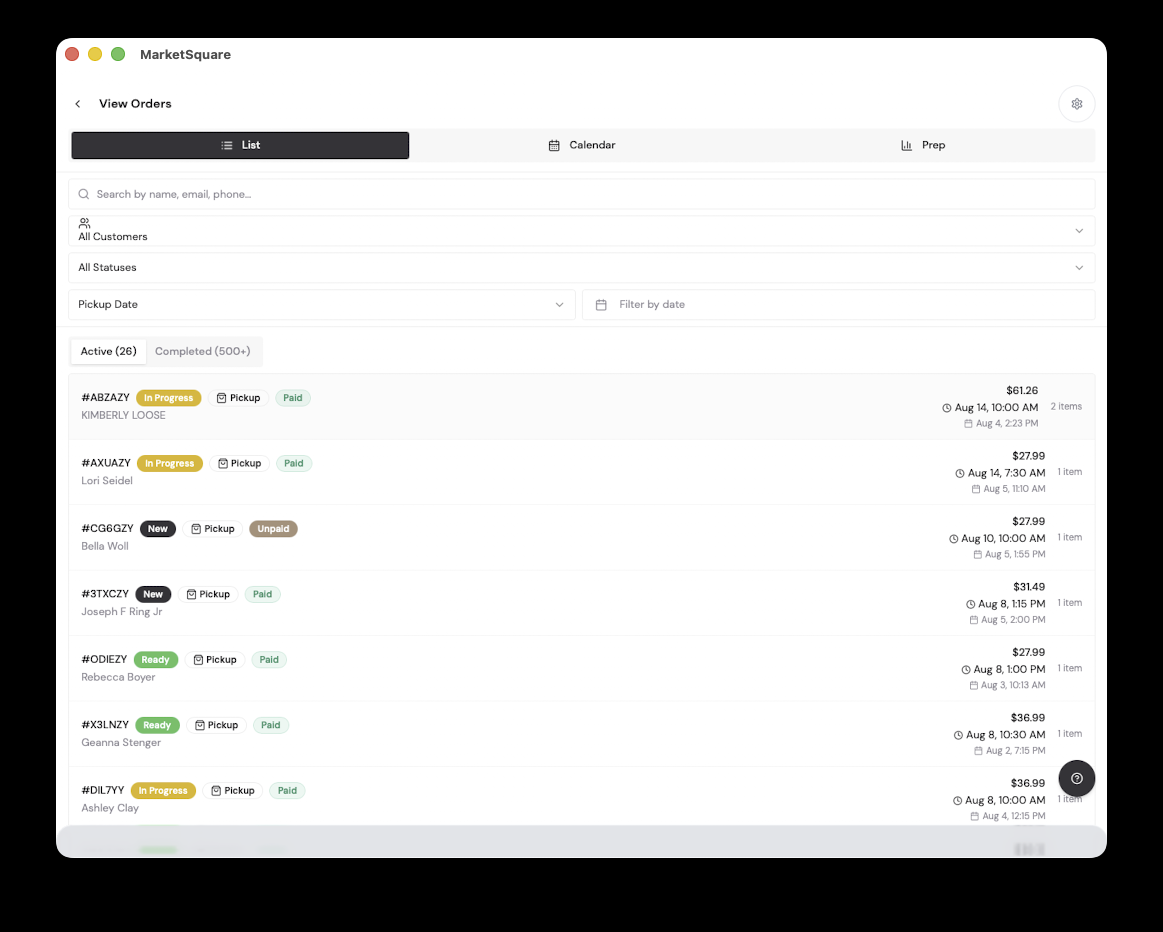
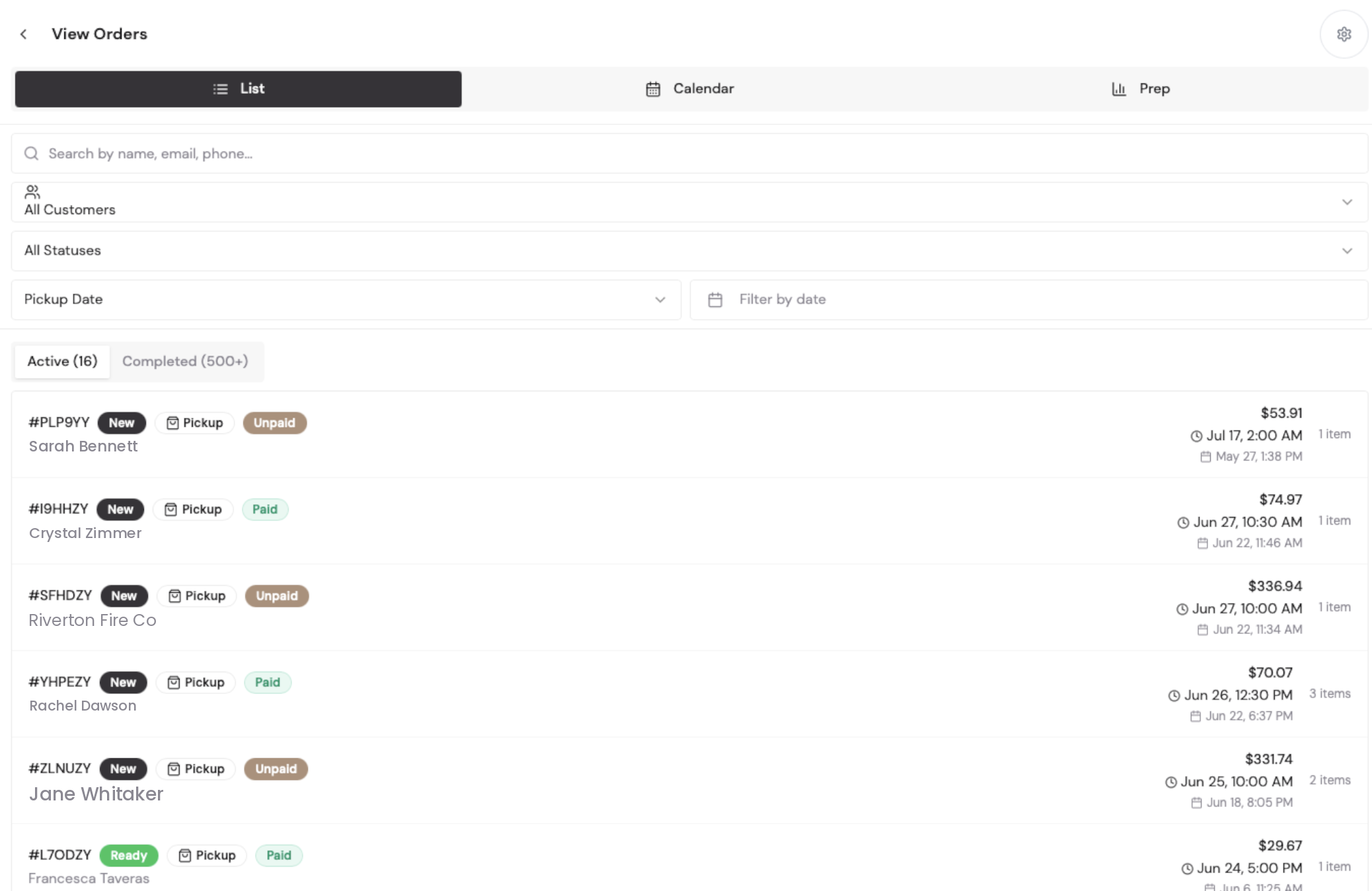
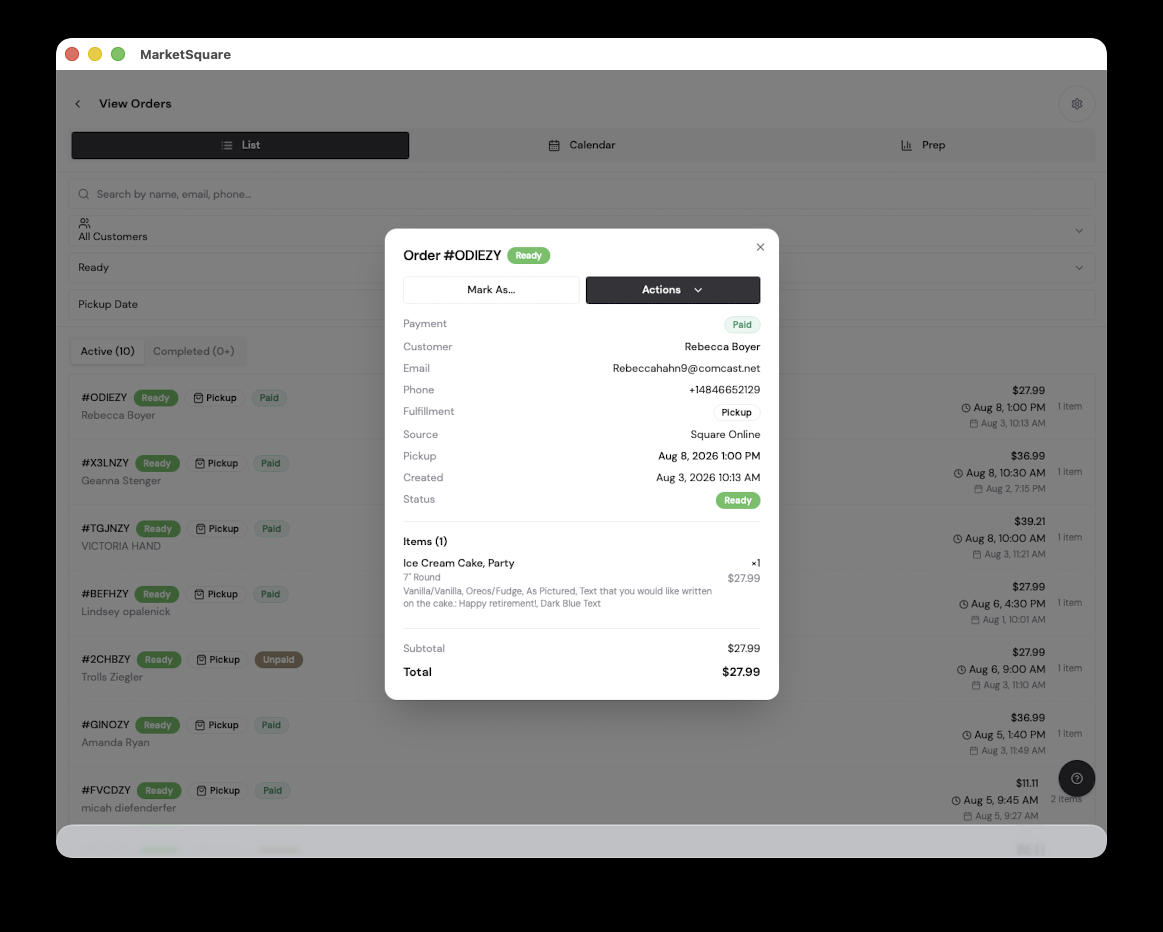
The order appears in the list with its status and payment state. Because it flows through Square, it is visible across your business without a separate order book at the register.
The customer pays in Square On your computer In the app
At pickup: pull the order up at the Square point of sale and take payment as normal — card, cash or gift card. Ahead of time: send a Square invoice or payment link, which is the better route for large catering orders. Either way the order flips to Paid.
Run the day with Calendar and Prep In the app
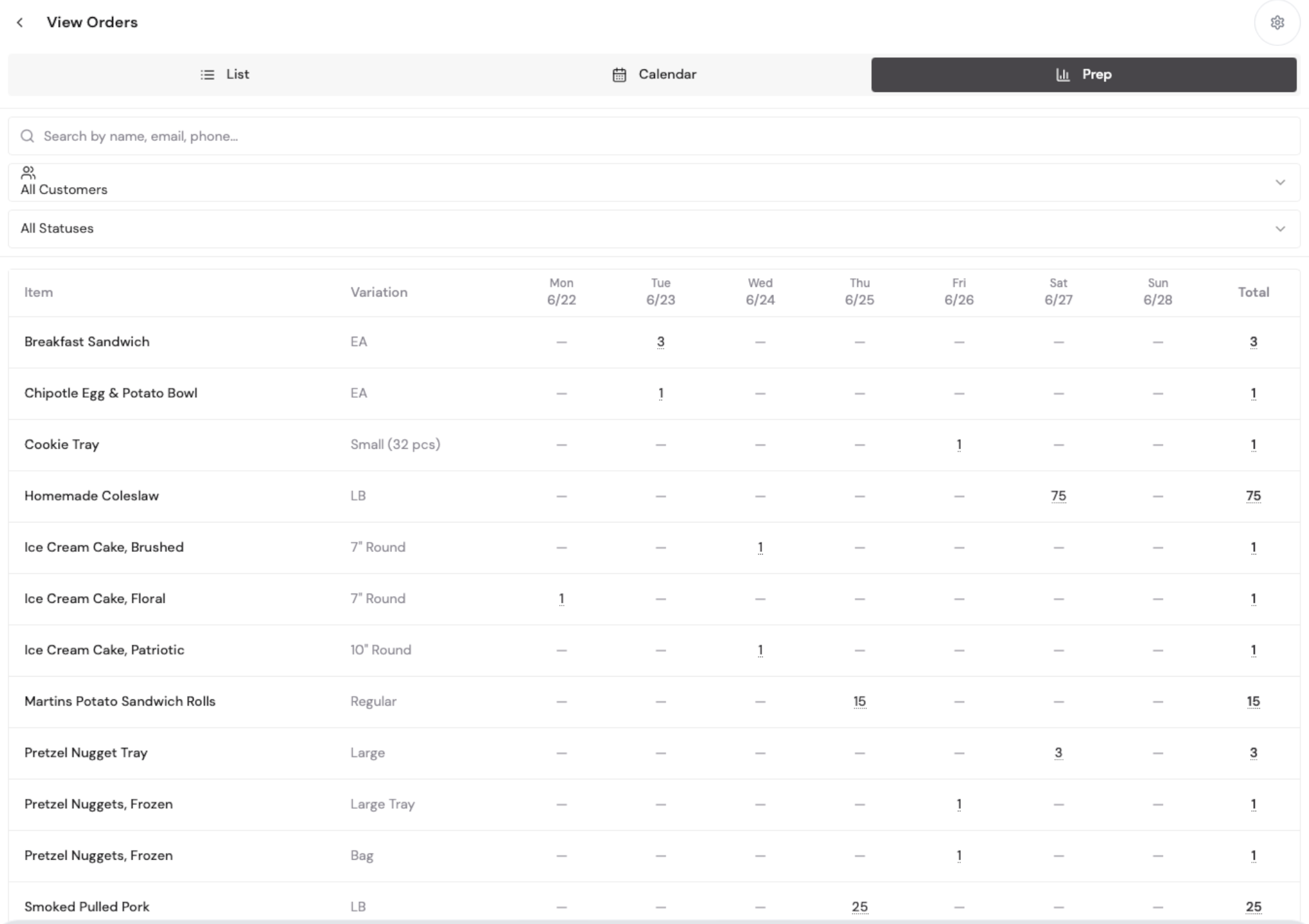
Calendar shows pickups by day and time, so the front counter is never surprised. Prep aggregates every item across all open orders by date — three cookie trays and seventy-five rolls for Friday — which is exactly what your kitchen, and the  KitchenHand Worklist, needs.
Common questions
Can we take a deposit?
Use a Square invoice for a partial payment up front, with the balance settled at pickup at the point of sale.
How do changes to an order work?
Edit the order before it is paid — items, options and pickup time. The prep view updates immediately.
Does inventory come out when the order is placed, or when it is paid?
Stock movement follows the Square sale at payment and fulfilment. Use the prep view to plan production ahead of pickup dates.