
 DeliLabel
Applies to: the current MarketSquare platform — mymst.app. Not applicable to the legacy V2 platform (beta.intrac.app).
 On your computer the web back office ·
 In the app phone, tablet or scale device
👉 Tap this press it in the app · Exact label look for this wording on screen
What this does
Print to Inventory closes the loop between labelling and stock counts. When you weigh and label product — a batch of sausage, a run of cheese wedges, a tray of grab-and-go —  DeliLabel records what you labelled and updates Square inventory in real time. What is on the shelf matches what the books say.
Where this happens: turn the feature on once on a computer; after that it is all at the scale.
- The item is set up for label printing in Catalog Items.
- Inventory tracking is enabled for the item in Square.
Turn on Print to Inventory On your computer
Open the item's Labels tab and enable Print to Inventory. From then on, labelled quantities flow to inventory automatically.
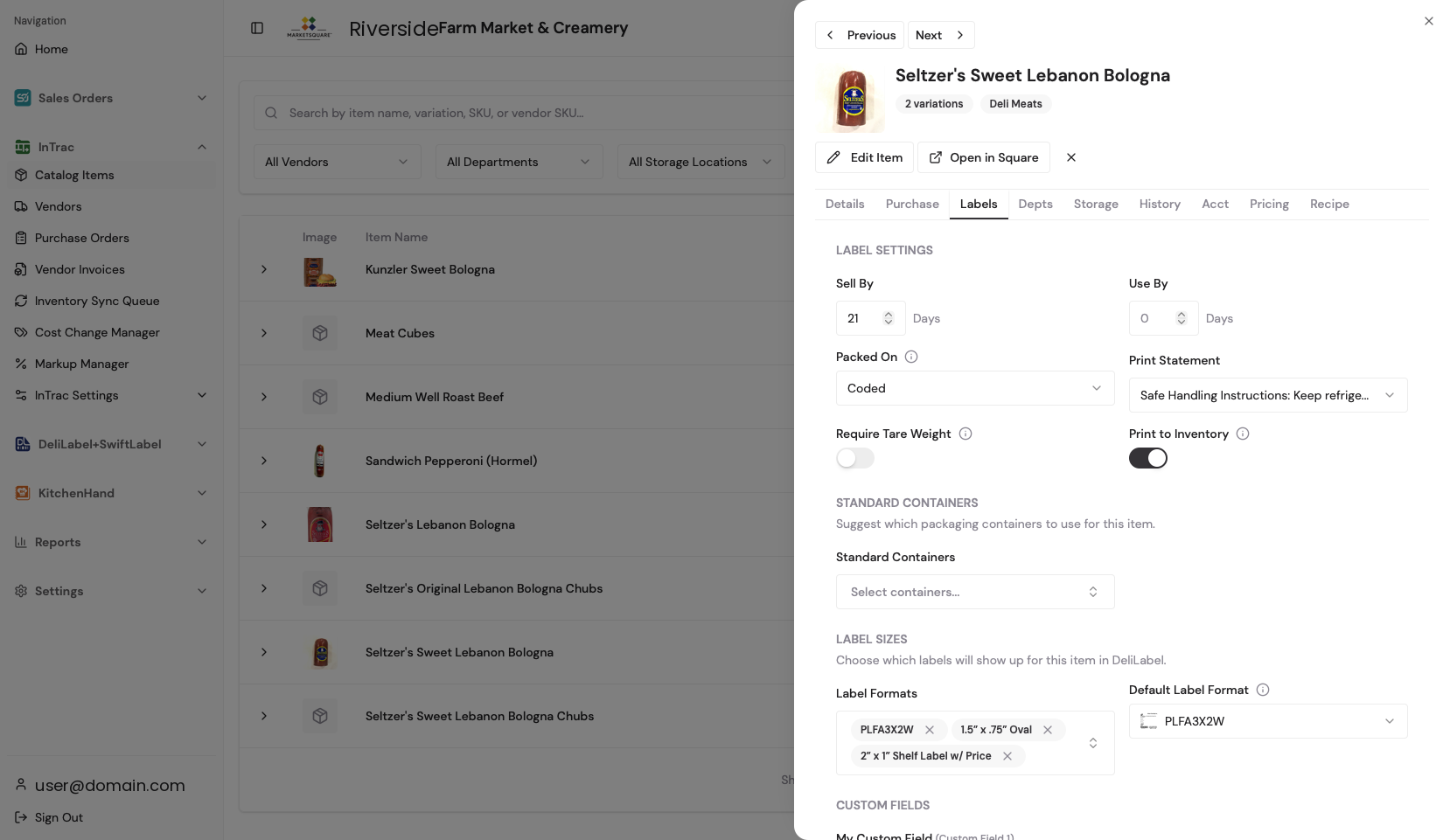
Label product as usual In the app
On the device, select the item and 👉 PRINT. For weighed items each label captures the actual weight from the connected scale; for each-items, the quantity you print is the quantity recorded.
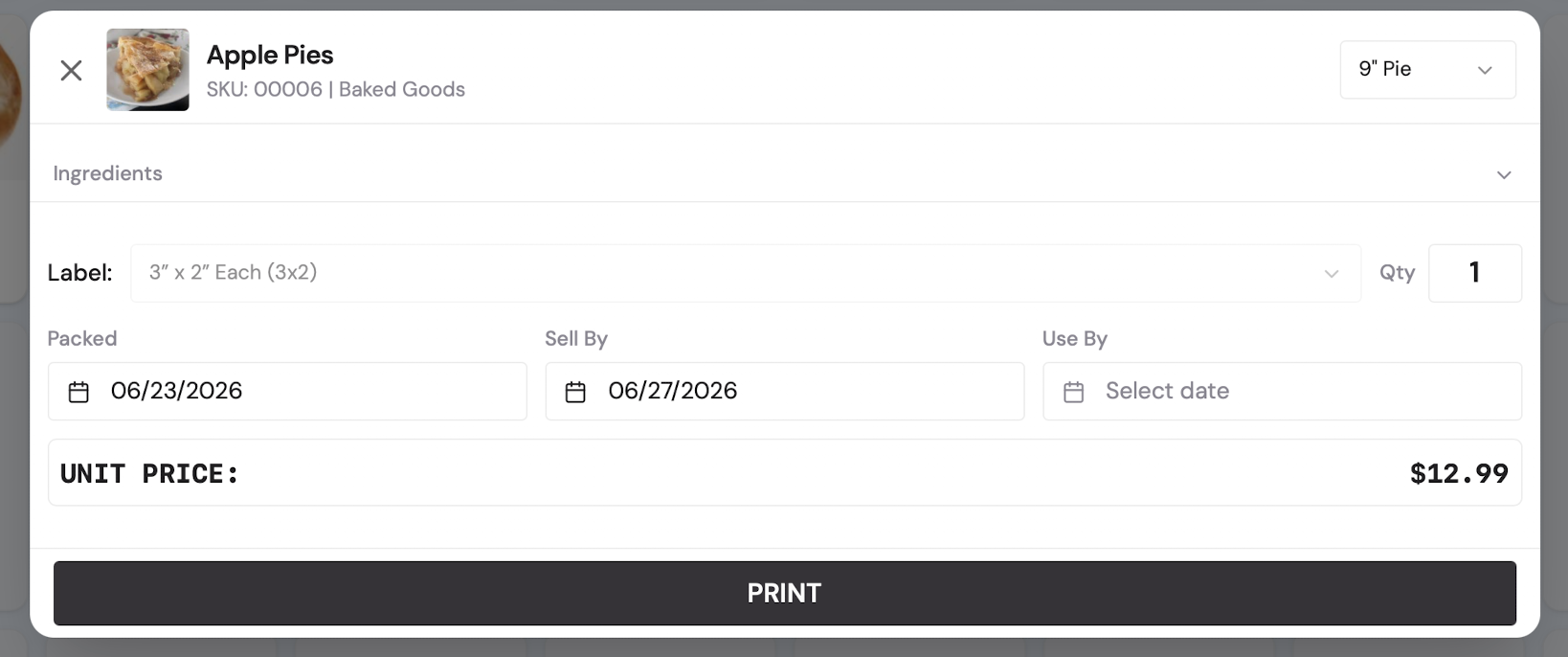
Inventory updates in Square On your computer
As labels print, the counts post to Square and appear in the item's inventory within moments. Spot-check your first few runs to confirm the flow, then trust it.
Common questions
What about labels I reprint or waste?
Use the reprint function for a damaged label rather than printing a fresh one, so product is not counted twice. If something does slip through, adjust the count in Square.
Does  SwiftLabel do this too?
SwiftLabel prints shelf tags and signage — those do not move inventory. Print to Inventory applies to product labelling through DeliLabel.
We make the item with a  KitchenHand recipe. Will inventory be added twice?
Use one source of truth per item. For items made in house with a recipe, let the recipe add the yield and use labels for dates and pricing only.