
What It Does
Every time you print a label, Print to Inventory adds the weight you just
printed to that item's stock count in Square — automatically, in the
background, with no extra steps at print time beyond leaving a toggle on.
Important Limitation
Print to Inventory only works for Weight-tracked items — things you weigh on
a scale before printing (deli meats, bulk items, etc.). It does not apply to
each/count items (a box of 12 cans, a bag of chips, etc.) — the toggle for
those items is hidden entirely, by design, since there's currently no way to
turn it on for them.
How to Turn it on for an Item
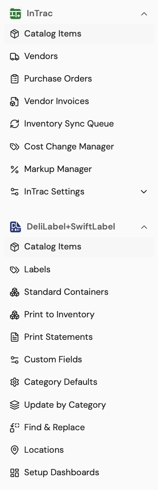
1. Open the item in the catalog (Catalog Items page, or the item detail
drawer) and go to its Labels tab — or open it in the item editor.
2. Look for Print to Inventory. This toggle only appears if the item is
weight-tracked — if you don't see it, the item isn't set up as a weight
item in Square.
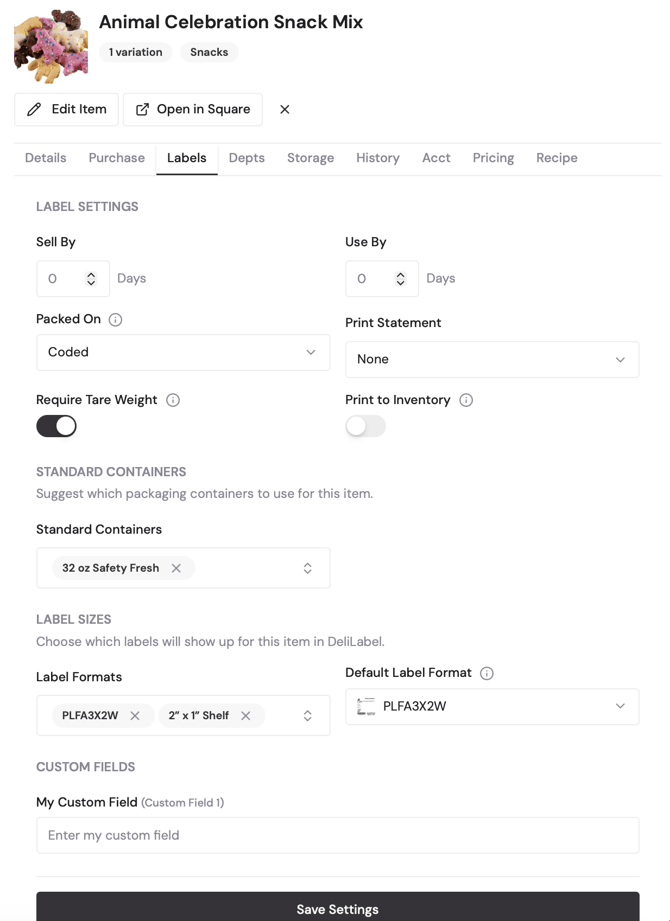
3. Turn it on. The tooltip explains it plainly: "Weight quantity will be
added to Square inventory every time a label is printed."
4. Save the item by clicking Save Settings.
NOTE: if you later change the item so it's no longer weight-tracked, this
setting gets cleared automatically — it can't stay on for a non-weight item.
What Happens When You Print
1. Open the item in DeliLabel and start a print as usual.
2. If Print to Inventory is on for that item, you'll see an "Add to
Inventory" switch in the print screen. It's ON by default — you can flip
it off for this one print if you don't want this particular print counted
(e.g. a reprint of a label you already accounted for).
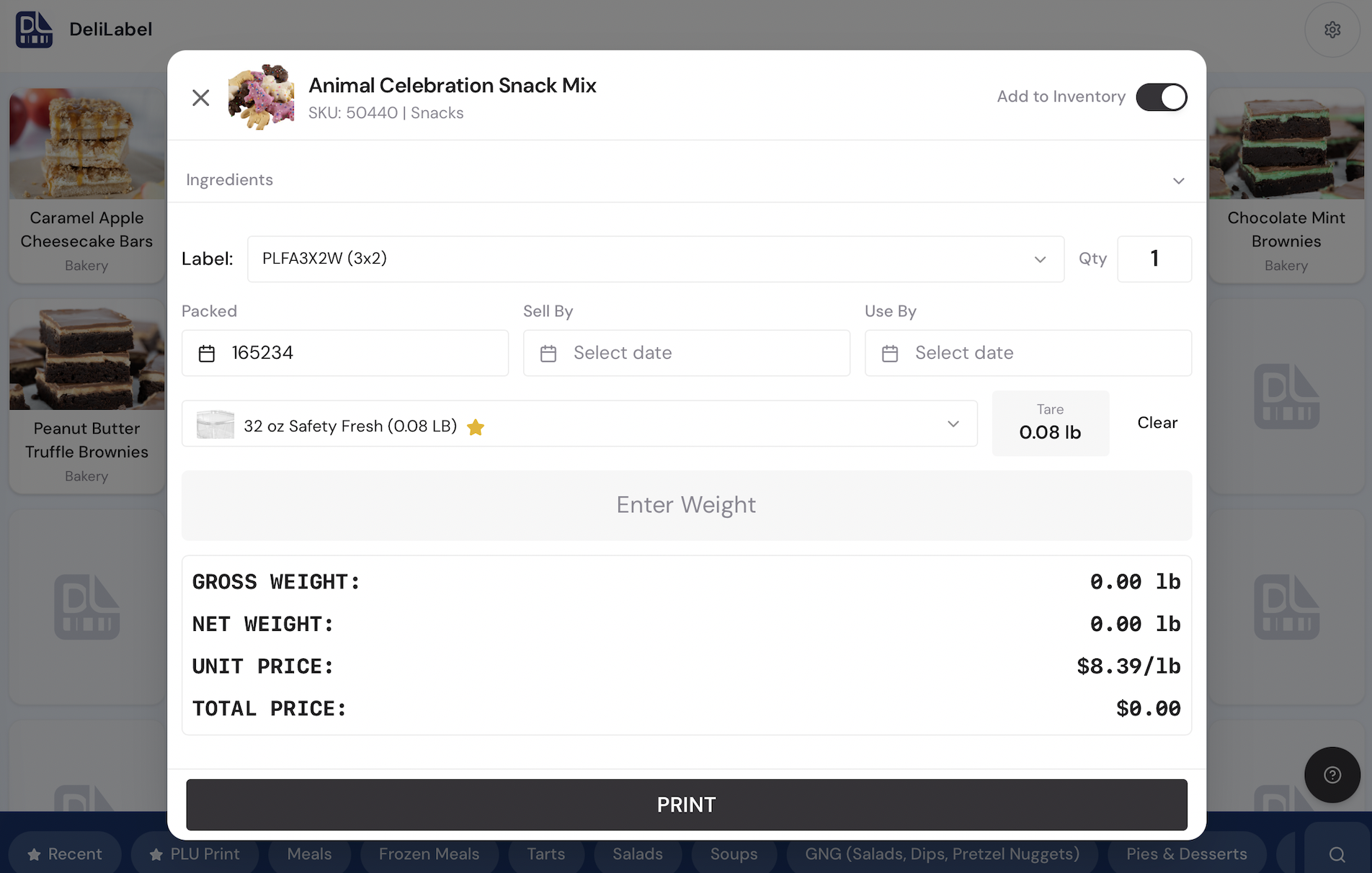
3. Weigh the item and print like normal.
4. In the background, the app queues the exact weight you printed to be
added to that item's Square inventory. Printing multiple copies at once
queues that same weight once per copy — so 3 copies of a 2.3 lb package
adds 6.9 lb total.
What Gets Skipped
- Zero weight or zero price: nothing gets queued (there's nothing meaningful
to add).
- Items where Print to Inventory is off, or you turned off "Add to
Inventory" for that print.
- Any print where the app can't resolve your organization, store location,
or the item's catalog ID — these are silent, fail-safe skips; printing the
label itself is never blocked by this.
Checking That it Worked
Go to DeliLabel > Print to Inventory Queue. You'll see batches of queued
updates with a status:
- Pending — queued, not yet pushed to Square
- (a completed/success state) — applied to Square inventory
- Failed — something went wrong; expand the batch to see which items
failed and why (an error message is shown per item)
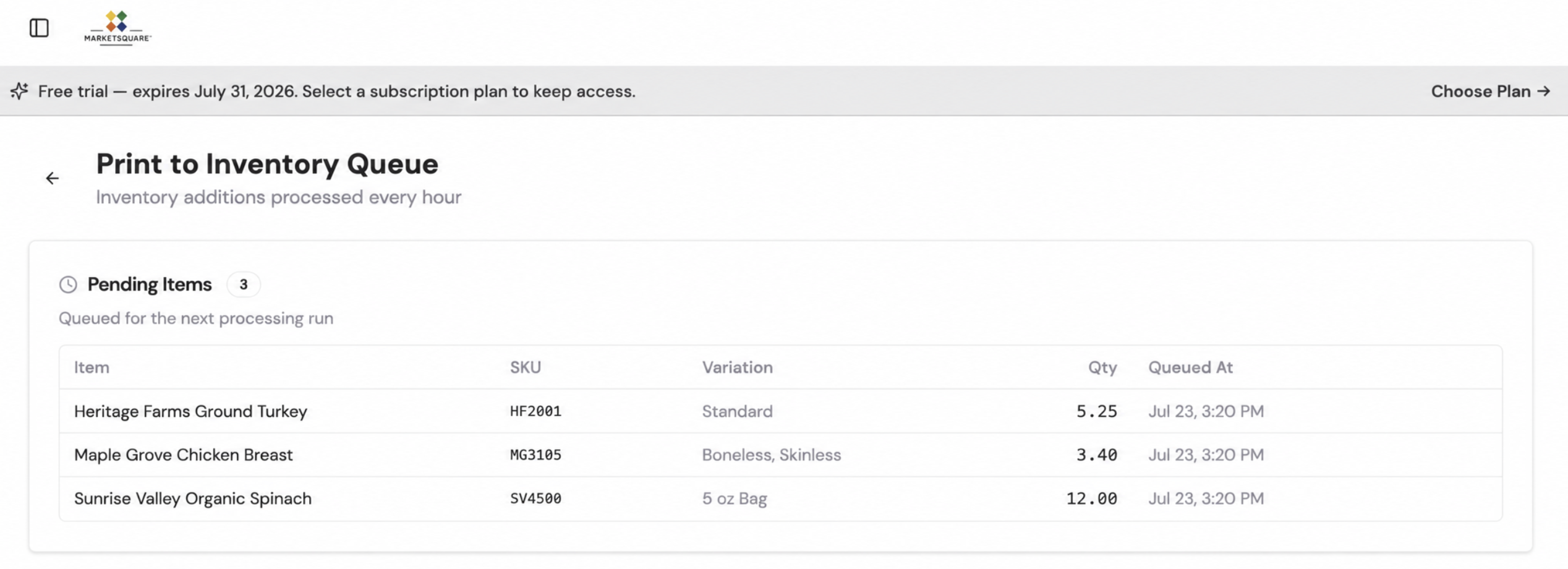
NOTE: A failed item does not silently disappear — it stays visible in the queue
with its error so you can retry or investigate.
What it Doesn't Do
- It doesn't touch each/count items (see limitation above).
- It doesn't change the price shown on the label — that's computed
separately from the scale weight.
- It doesn't require you to do anything different at print time beyond
leaving the switch on — there's no separate "submit to inventory" step.