
Adding the Printer to Your Network
The easiest way to add a printer to your local network and set up the print media options is to download the Zebra Printer Setup Utility app. This app can find and connect to Zebra printers communicating via a network or Bluetooth.
A network connection is required if you have multiple printers, as Bluetooth can only support one printer connection at a time.
- Download the Zebra Printer Setup Utility app from the iOS App Store.
- Load the printer with labels and power it on.
- Launch the Printer Setup app and tap Discover Printers. The app should find your
printer via a Bluetooth connection.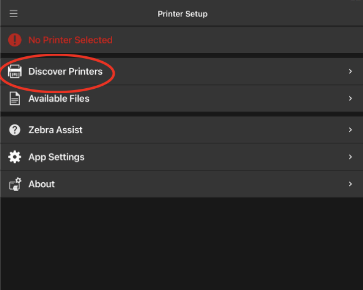
- Find your printer in the Discovered Printers list and select it. If this is the first time
connecting to this printer, it will be identified by its serial number.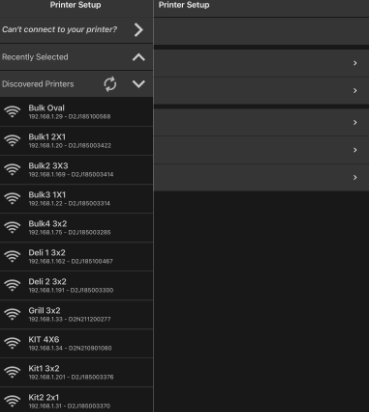
-
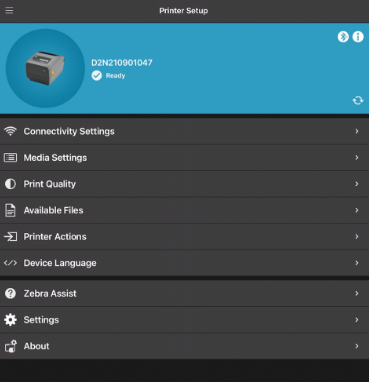
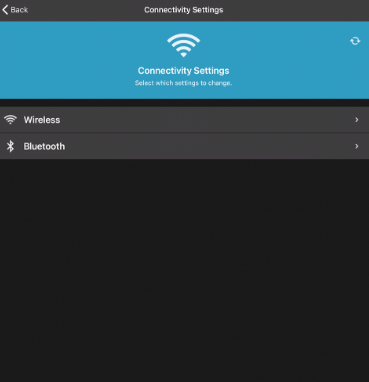
Tap Connectivity Settings.
-
For Bluetooth Printer Connection (WiFi go to step 7): Bluetooth can only
support a single printer. If you have multiple printers to connect, you must use
WiFi.-
Tap Bluetooth.
-
Toggle both the Bluetooth and Discoverable toggles ON. Enter a Printer
Name if you wish to or leave the default name. Tap Next.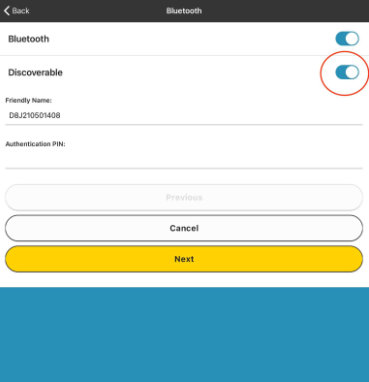
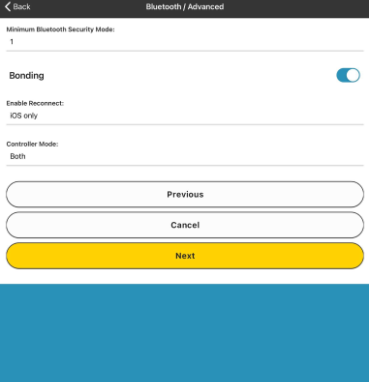
- Tap Next and then Apply on the following screen.
-
- WiFi Printer Connection: WiFi connections are required when you would like to
connect multiple printers with different label sizes. DeliLabel will automatically
print from the correct printer based on the label size you selected.- Tap Wireless.
-
Give your printer a name in the Hostname field. This should be descriptive
enough that you can identify the printer in the DeliLabel app. It can be
helpful to include the label size that the printer will be loaded with and
possibly the location (ex. Kitchen 3 x 2). Tap Next.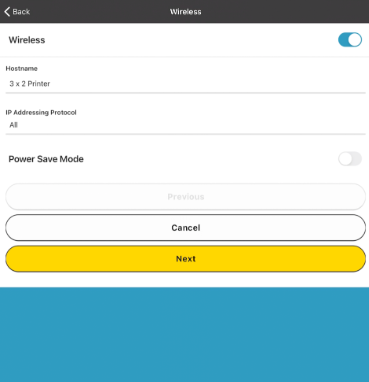
- No changes on this screen. Tap Next.
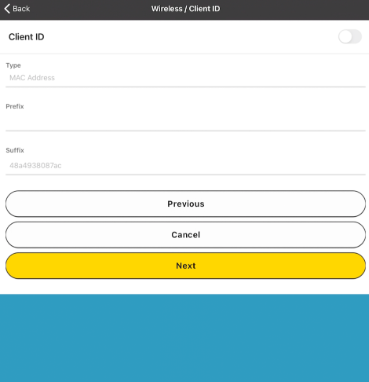
- Enter your WiFi Network ID in the ESSID field. This must be spelled
exactly the same as your network name.-
Select the Security Mode for your network from the dropdown. This
will be specific to your network although WPA_PSK is very
common. - Tap Next.
-
-
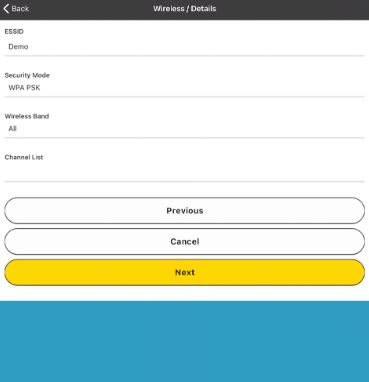
If you chose WPA_PSK as your security mode, enter your network
password in the Wireless Identity field. Tap Next.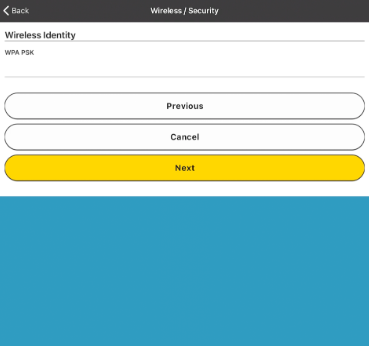
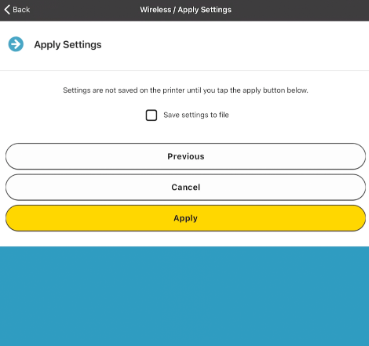
- Tap Apply to save the settings to the printer.
- Tap Wireless.
- Tap Reset and give the printer a few minutes to reboot. After the printer restarts,
the network light on the printer should turn green indicating that the printer is connected to the network. If it doesn’t, double check your network settings andtry connecting again.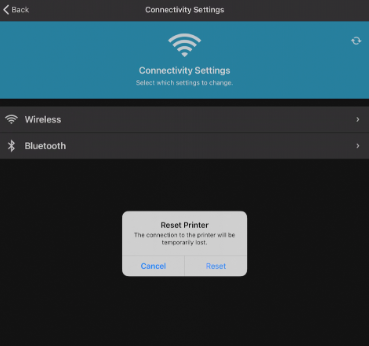
- If you see the No Printer Selected message, tap the menu button in the upper left
corner and select your printer from the Discovered Printers section to connect. -
Tap Media Settings to configure the Label Parameters.
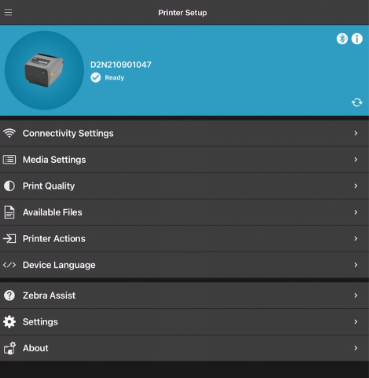
- Tap Media Settings to edit the media settings.
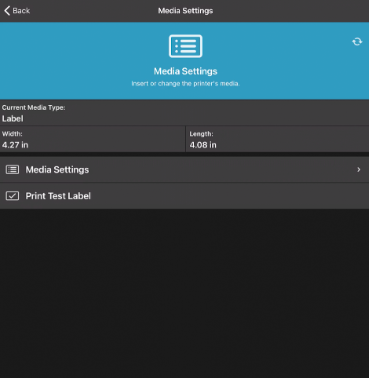
-
Set the media type to Label/Tag. Tap the Width and Length field to enter the
label dimensions. The Orientation should be set to Normal. Tap Next.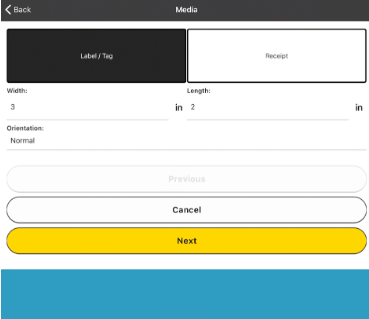
-
Media Type should be Auto Detect. Type of Transfer is Direct Thermal. Media
Handling is Tear Off unless a Peeler/ Dispenser is being used with the printer. If
so, set Media Handling to Peel Off. Tap Next.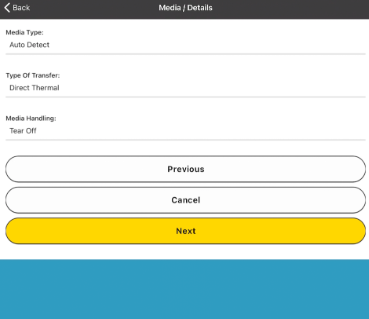
-
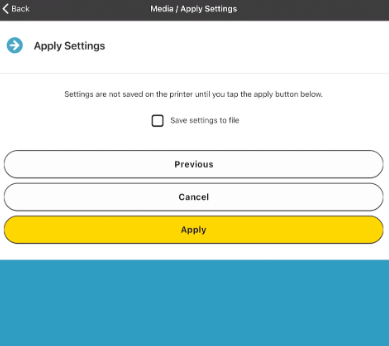
Tap Apply to save the settings to the printer.
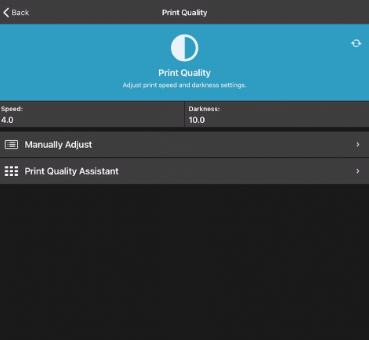
- Tap Print Quality to adjust the print settings
-
Tap Manually Adjust.
-
Set the Speed to 4.0 and the Darkness to 30.0. Tap Next and then Apply to save
the settings to the printer. You have successfully configured the ZD420/421 printer in
the Zebra Setup Utility app.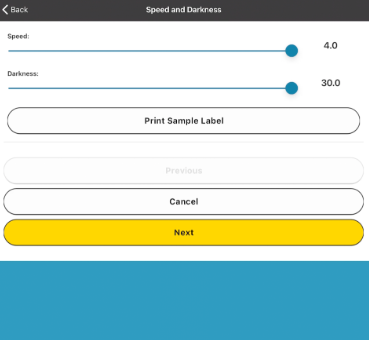
FACTORY RESETTING:
IN the event you need to start over -- here are the quick instructions to FACTORY RESET Printer:
-
Hold the Pause and Feed buttons.
-
Turn the printer on while holding both buttons.
-
Keep holding them until the Status indicator is the only light on.
(refer to this article if further help needed)