
Overview
SwiftLabel currently only allows Zebra printers to be setup with it. Before you start, you will need to make sure you have the printer of choice connected by either WiFi or Bluetooth. The appropriate guide can be found at the link below.
- Download with SwiftLabel app from either the Apple App Store or the Google Play Store.
- Log in with your User Email and Password that was sent to you when you created an App User in the Admin Dashboard.
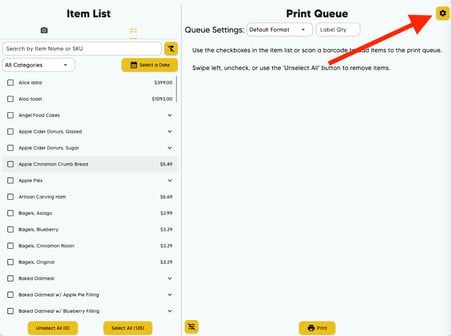
- Tap the Menu icon at the top right of the page.
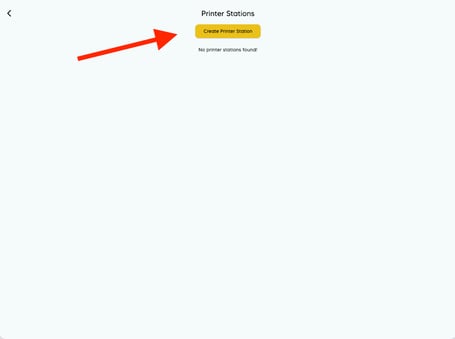
- Tap Printer Stations and since you don't have any printer stations yet, press Create Print Station.

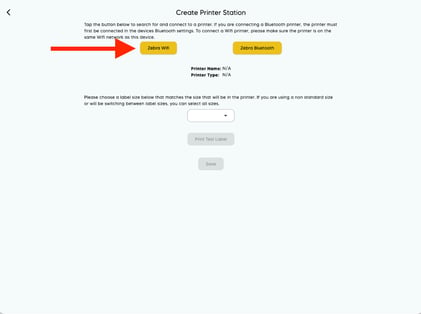
- Connecting via Zebra WiFi: To connect to a Zebra printer through WiFi, the
printer must first be connected to your local WiFi Network. This was covered in the
guide above.- Tap Zebra WiFi.
- If this is your initial setup, you will see a popup. Tap
Allow to enable SwiftLabel to connect to devices on your network. If you
tap Don’t Allow, you will need to go into your device's settings and give
SwiftLabel this permission before continuing. - If your printer doesn’t appear on the list, tap to the left or right of the
search window, then tap Zebra WiFi to search again. It may take more than
one search to find a printer. Your printer will have the name you gave it in
the Zebra Printer Setup Utility app (serial number is the default).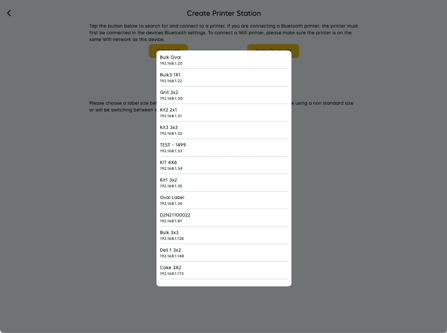
- The printer information will autofill the type, name, and IP fields. Select the
label size that matches what is in your printer. You can hit Print a Test Label
and then tap Save below that.
- Your printer will now be visible in the list of connected printers. You can
close the Printer Station window.
- Tap Zebra WiFi.